

Rêbernameya Bikarhêner a Kontrola Siya Smart a Pulse PRO Automate RTI

Otomatîkkirina PULSE PRO OverVIEW
Elevate your Automate experience by seamlessly integrating Automate motorized shades into RTI Control Systems. The Automate Pulse PRO offers a powerful integration with discrete shade control and two-way communication, providing real-time updates on shade position and battery levels. Featuring both Ethernet (CAT 5) and 2.4GHz wireless connectivity, the Pulse PRO ensures smooth home automation integration through an easy-to-access RJ45 port located on the back of the hub. Each hub supports up to 30 shades, making it a versatile solution for any home automation setup.
DESTPÊKIRIN:
In order to integrate your motorized window treatments with RTI Control System, you will need to have:
- Downloaded the free Automate Pulse PRO via the Apple App Store (available under iPhone /iPad apps) or the Google Play Store.
- Li gorî mezinahiya cîhê, yek an çend Automate Pulse PRO kirî û heke pêwîst be, dubarekerên zêde.
- Dermankirinên pencereyên xwe yên motorîzekirî li ser sepana Automate Shades entegre kir.
TALÎMATÊN DI NAV DE:
- Set up instructions for both the Automate Shades App & Automate Pulse PRO.
- RTI Driver Installation Specification.
- RTI Control System Driver Operating Guide.
- Integration Diagram.
- Integration FAQ’s.
DÎROKA REVIZIONYÊ:
- Initial release of the driver.
Agahiyên GIŞTÎ:
- The Automate Pulse PRO Operating Guide for information on setup of the system. This driver is for control and feedback only. Setup of the Automate Pulse PRO Hub must be completed prior to setting up driver. Contact Rollease Acmeda for information on how to complete setup using the Hub and App. This driver is for the Automate Pulse PRO Hub only and control motors (i.e. shades) via TCP Communication.
MÎNGÊN TÊKILIYÊ: The Network TCP is the only method for communicating with the Pulse PRO Hub. Enter the IP Address of the Hub in the TCP Address field.
MOTOR COUNT (i.e. Shade Count): Enter the number of motors (Shades) that this Pulse PRO is controlling using the App to have the same capability on RTI Control System Driver.
MOTOR NAME (i.e. Shade Naming): Enter a unique name for each motor (i.e. shade). When the driver is running on the processor, the Motor or Shade name is updated automatically accordingly named on the Automate Shades App.
MOTOR ADDRESS (i.e. Shade Address): Enter the motor address that corresponds to the motor (i.e. shade) to be controlled. This address is acquired during the Automate App setup on the system.
DRIVER COMMAND: The control commands are available for movement of motors (i.e. shades) up and down as well as adjusting the shade to a discrete level by entering a value as a percentage.
DRIVER VARIABLES: Feedback variables are available for initialization state, connection state, and motor (i.e. shade) specific.
DRIVER INSTALATION:
- Unpack the Equipment:
• In this case, were used XP3 Processor and a KX3 Touch Panel to exemplify the communication between the RTI Control System and Automate Pulse PRO.
• XP3 – Use provided power supply to power up processor. Also connect to network (make sure to use ethernet connection and not RS-232). If you have a POE connection, then the XP-3 can be powered that way as well.
• KX3 – Use provided power supply (has a RJ-45 end) to power the KX3 through the Control Port on the back of the unit. Connect this to the network as well. If you have a POE connection, then the KX3 can be powered that way as well. - Zipê vekin file containing the driver and sample file. Copy the driver file (Rollease Pulse.rtidriver) to Integration Designer’s Control Driver Library (Documents\Integration Designer\Control Drivers). We will open the sample file in Integration Designer APEX
- Load Integration Designer APEX onto your computer and launch software.
- Open provided Integration Designer APEX file (Rollease Pulse Sample File.apex) from the File qerta xûrekê.

- Use the Automate Shades App to get the Hub IP address. On Manage Hub screen, you have the full Hub information. Enter “Hub IP Address” as one variable on the connection settings on Integration Designer Software.

- Di vê example, it was used 2 motors/shades only. The motor “count number” will determine how many motors will be showing available in the list below it. Add a unique “Motor Name” for each motor on that list and enter the “Motor Address” for each shade according to available on Automate Shades App on the device screen.

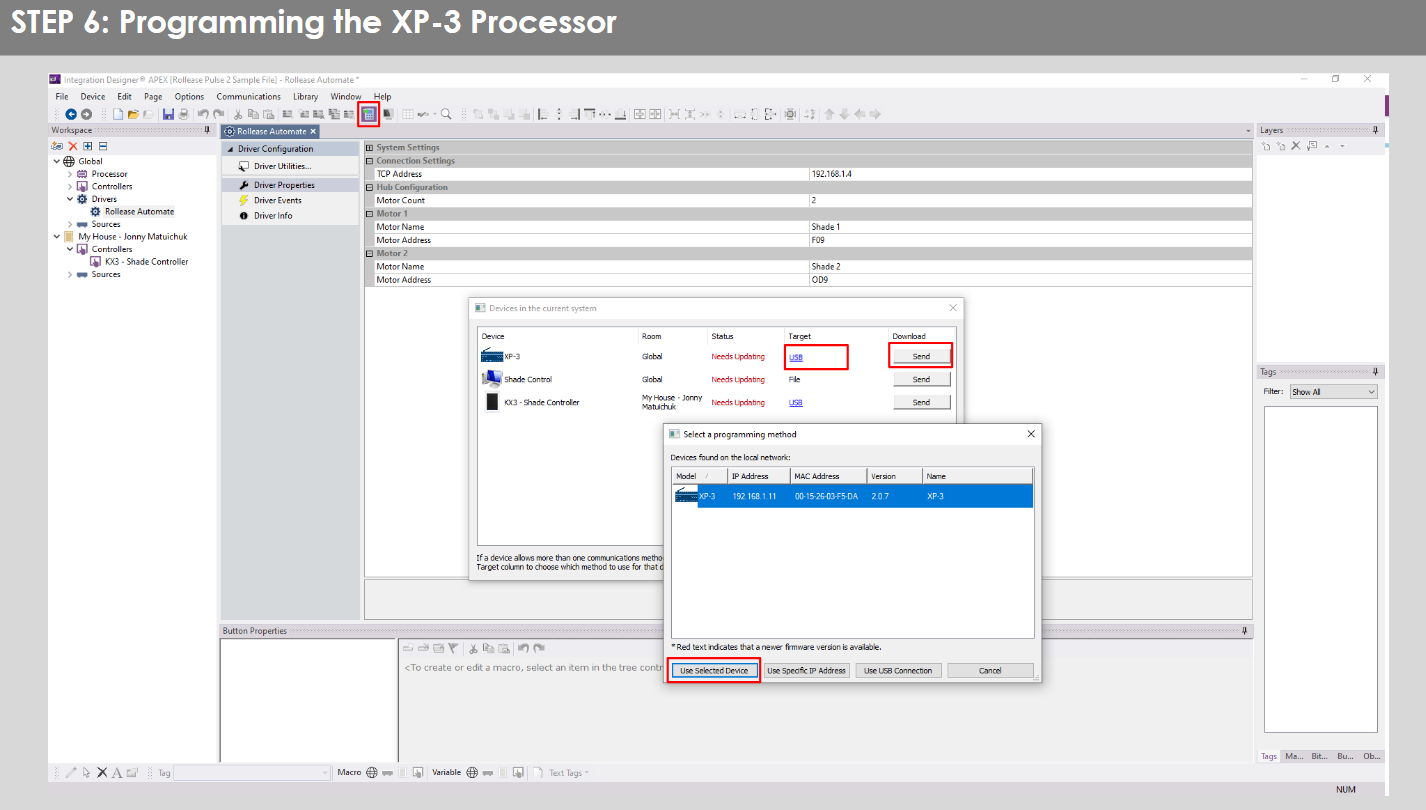
- Click on the “Download” icon from the top toolbar. This will open a screen with all devices available on Integration Designer. After that, click on the “USB” link that corresponds to your processor (in this case for the XP-3) in the Target column. When clicking that, a new window will open that shows all processors in your system. Select that one it corresponds to your processor and click on “Use Select Device”. Then after the window closes click the “Send” button in the Download column.
- Repeat the same process for KX3 Touch Pad.

- There is also a Virtual Panel control provided in the file which will create a controller for your computer.


- To launch the Virtual Panel, click the “Send” button like you did with the previous devices. Since this is a virtual device you will be directed to save the Virtual Panel to a location on your computer.

- Once you save the Virtual Panel it will launch.

Şaşiyên hevpar:
- Di xeta mîhengê "Navnîşana IP" de navnîşana IP-ya xelet têkevin.
If you’re failing to communicate with the devices, double check this!
RTI CONTROL SYSTEM CONNECTION:

PIRSÊN PIRSÎN:
Q. No Pulse PRO detected.
A. Piştrast bike ku Automate Pulse PRO-ya te bi tora rast ve girêdayî ye û navnîşana IP-yê peyda bike û hîn jî bi karanîna sepana Automate Shades bi torê re têkilî dayne.
Q. Sînorên siyê bi rêkûpêk nehatine danîn.
A. Calibrate shade limits with your Rollease Acmeda remote before setting the appropriate open and close time within RTI Control System.
Q. Şade qet nagere.
A. Make sure the selected Pulse PRO Hub is the correct Pulse PRO Hub for the shade to be controlled. Confirm the correct bindings are set in the RIT Control System connections tab between the Pulse PRO Hub and Shade drivers.
Q. We get unexpected responses from the RTI system, or “?” symbols
A. Piştrast bikin ku hemî girêdanên ku porta ethernet an Wi-Fi bikar tînin bi rêkûpêk dixebitin. Tê zanîn ku girêdana windabûyî encamên nedilxwaz an nediyar derdixe holê.
ÇAVKANÊN PIŞTGIRÎ:
Ji bo arîkariya bêtir, bi firotgeha xwe re têkilî daynin, biçin serdana me website li www.rolleaseacmeda.com

Belge / Çavkanî
 |
AUTOMATE Pulse PRO Automate RTI Smart Shade Control [pdf] Rehbera bikaranînê RTI, Pulse PRO Automate RTI Smart Shade Control, Automate RTI Smart Shade Control, Smart Shade Control, Shade Control |