Pêşkêş
Welcome to the user manual for your Tibuta Smartpad A40 tablet. This guide provides essential information on setting up, operating, maintaining, and troubleshooting your device. The Smartpad A40 is designed for versatile use, featuring a large 10.1-inch display, a powerful quad-core processor, and the Android 14 operating system.

Image: The Tibuta Smartpad A40 tablet, shown with its protective case, highlighting its Android 14 operating system and 6GB RAM + 64GB ROM configuration.
Setup Guide
1. Unboxing û Kontrola Destpêkê
Carefully remove all components from the packaging. Ensure the tablet, protective case, charging cable, and power adapter are present. Inspect the tablet for any physical damage.

Image: The Tibuta Smartpad A40 tablet with its included case and headphones, illustrating its core features such as Android 14, IPS display, memory, battery capacity, and camera specifications.
2. Barkirina Tabletê
Before first use, fully charge the tablet. Connect the Type-C charging cable to the tablet's charging port and the other end to the power adapter. Plug the adapter into a wall outlet. The charging indicator will show the charging status.

Image: The Tibuta Smartpad A40 tablet connected to a Type-C charger, emphasizing its 5000mAh battery capacity and estimated usage times for video playback and overall endurance.
3. Hêzdarkirina / Off
- Hêzdarkirin: Bişkoka Hêzê ya li kêleka tabletê bigire heta ku logoya Tibuta xuya bibe.
- Ji bo Veqetandinê: Bişkojka Hêzê bigire heta ku menuya vebijarkên hêzê xuya bibe. "Power off" hilbijêre û piştrast bike.
- Ji nû ve destpêkirinê: Ji pêşeka vebijarkên hêzê, "Ji nû ve dest pê bike" hilbijêrin û piştrast bikin.
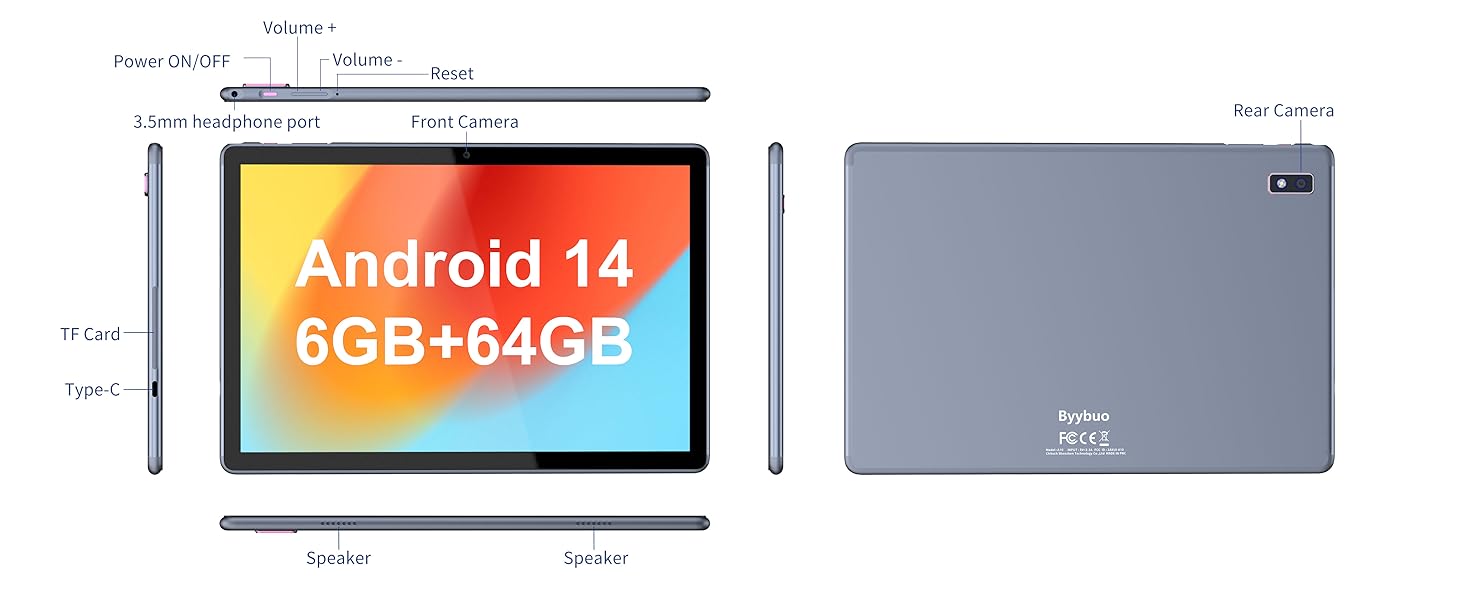
Image: A detailed diagram illustrating the physical layout of the Tibuta Smartpad A40, including the positions of its buttons, ports, and cameras for easy identification.
4. Wizard Setup Destpêk
Upon first power-on, the tablet will guide you through the initial setup process. Follow the on-screen prompts to:
- Zimanê xwe hilbijêre.
- Girêdana tora Wi-Fi.
- Bi hesabê xwe yê Google-ê têkevinê an jî yeka nû biafirînin.
- Kilîda ekranê saz bike (PIN, şablon, şîfre).
- Review û şert û mercan qebûl bike.
Operating Your Tibuta Smartpad A40
1. Navigation and Touchscreen Gestures
The Smartpad A40 features a responsive multi-touch display. Common gestures include:
- Dîk: Ji bo hilbijartina tiştek an vekirina serîlêdanekê.
- Tap bike û bigire: Ji bo gihîştina menuyên kontekstî an jî veguhestina îkonan.
- Bişo: To scroll through pages or navigate between screens.
- Biçipîne bo Zoomkirinê: Ji bo mezinkirin an biçûkkirina wêneyan û web rûpelan.
2. Dîmender û Deng
Experience vibrant visuals on the 10.1-inch IPS HD display with a resolution of 1280 x 800 pixels. The tablet also features an eye protection mode to reduce strain during prolonged use. Enjoy clear audio through the integrated dual high-fidelity speakers.

Image: The Tibuta Smartpad A40 tablet showcasing its IPS Full HD display and dual speakers, emphasizing its 10.1-inch screen size, 1280x800 IPS resolution, eye protection mode, and high-fidelity audio output.
3. Performance and Operating System
Powered by a robust Quad-Core processor and running on Android 14, the Smartpad A40 delivers smooth performance for multitasking, gaming, and streaming. The Android 14 system ensures access to the latest features and security updates.

Image: The Tibuta Smartpad A40 tablet showcasing its Android 14 operating system and GMS certification, with various application icons visible on the screen.
4. Storage and Memory
The tablet comes with 6GB of RAM (2GB + 4GB virtual) and 64GB of internal storage, providing ample space for your applications, photos, videos, and documents. Storage can be expanded up to 128GB using a microSD card (not included).

Image: The Tibuta Smartpad A40 tablet highlighting its 6GB RAM and 64GB internal storage, along with the option to expand storage up to 128GB via a microSD card.
5. Cameras
Capture moments with the tablet's dual cameras: a 5 MP front camera for video calls and selfies, and an 8 MP rear camera for photos and videos.

Image: Demonstrates the Tibuta Smartpad A40's camera capabilities, featuring a 5.0 MP front camera for HD video and an 8.0 MP rear camera with autofocus for capturing photos.
6. Têkilî
The Smartpad A40 supports Wi-Fi (802.11ac) for fast internet access and Bluetooth for connecting to wireless peripherals like headphones and speakers.
7. Versatile Use Cases
The Tibuta Smartpad A40 is designed for a wide range of activities, from entertainment to productivity. Its portability makes it ideal for on-the-go use, while its features support various daily needs.

Image: Illustrates the diverse applications of the Tibuta Smartpad A40, including watching videos, assisting with daily tasks, and serving as a tablet for both children and seniors.
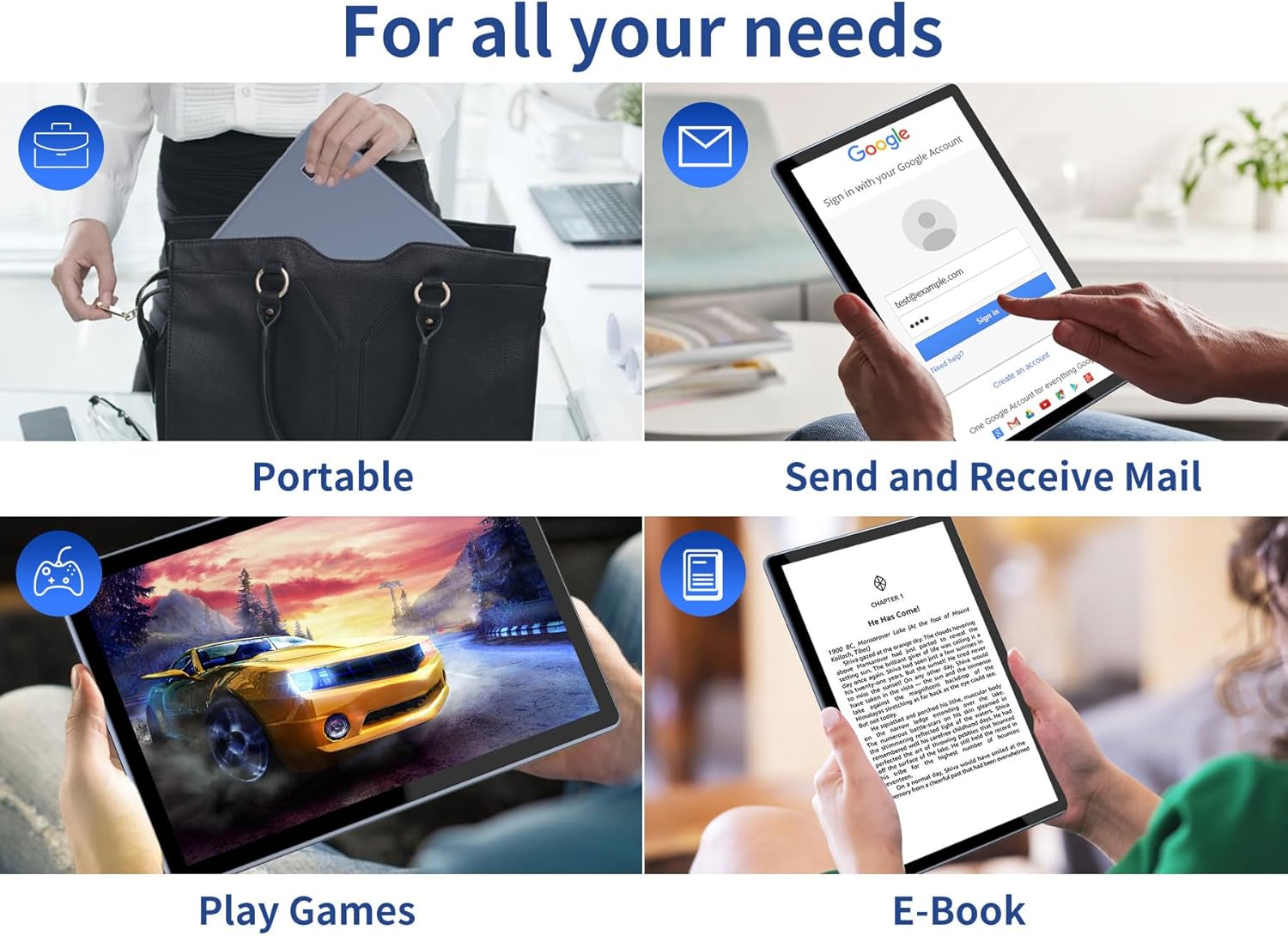
Image: Depicts the versatility of the Tibuta Smartpad A40 for various user needs, including portability, email communication, gaming, and e-book reading.
Lênerrînî
1. Paqijkirina Tabletê We
Ji bo paqijkirina ekran û laşê tabletê qumaşek nerm û bê lîf bikar bînin. Ji bo lekeyên dijwar, hinekî bişon.ampQumaşê bi av an jî paqijkerek ekranê bişon. Ji bikaranîna kîmyewiyên dijwar an jî madeyên aşındêr dûr bisekinin.
2. Nûvekirinên Nivîsbariyê
Regularly check for and install system updates to ensure your tablet has the latest features, security patches, and performance improvements. Go to Mîheng > Sîstem > Nûvekirina sîstemê ji bo nûvekirinan kontrol bikin.
3. Lênêrîna Pîl
Ji bo dirêjkirina jiyana bateriyê:
- Ji germên zêde dûr bixin.
- Berî ku pir caran batarya ji nû ve şarj bikin, nehêlin ku bi tevahî vala bibe.
- Dema ku batarya tijî bû, şarjkerê ji ceryanê veqetînin.
4. Rêveberiya Storage
Periodically review sepanên we yên sazkirî û files. Uninstall unused apps and delete unnecessary files to free up storage space and maintain optimal performance. Utilize the microSD card slot for additional storage if needed.
Çareserkirina pirsgirêkan
| Pirsegirêk | Sedema gengaz | Çare |
|---|---|---|
| Tablet vêna nabe. | Pîla kêm; têkçûna sîstemê. | Charge the tablet for at least 30 minutes. Press and hold the Power button for 10-15 seconds to force restart. If unresponsive, locate the small reset pinhole (refer to diagram in Setup Guide) and gently press it with a paperclip. |
| Pirsgirêkên girêdana Wi-Fi. | Şîfreya şaş; pirsgirêka routerê; Wi-Fi ya tabletê girtî ye. | Ensure Wi-Fi is enabled in Settings. Re-enter Wi-Fi password. Restart your Wi-Fi router. Forget the network and reconnect. |
| Performansa hêdî. | Pir zêde sepan dixebitin; cîhê hilanînê kêm e; nermalava kevnar e. | Close background apps. Clear cache. Uninstall unused apps. Check for system updates. Restart the tablet. |
| Serlêdan têk diçin an jî cemidandin. | App bug; insufficient resources. | Force close the app (Settings > Apps > [App Name] > Force Stop). Clear app cache/data. Reinstall the app. Ensure system is updated. |
Specifications
| Taybetî | Hûrî |
|---|---|
| Nîşan | Tibuta |
| Hejmara Model | A40 |
| Operating System | Android 14 (Android 13 listed in some specs, but product title indicates 14) |
| Mezinahiya Screen | 10.1 inches |
| Çareserkirina Screen | 1280 x 800 Pixels (IPS HD) |
| Processor Brand | Allwinner (Quad-Core) |
| Mezinahiya RAM-a sazkirî | 6 GB (2+4GB) |
| Kapasîteya Storage Memory | 64 GB |
| Expandable Storage | Micro SD (heta 128 GB) |
| Kamera pêş | 5 MP |
| Kamera paşîn | 8 MP |
| Kapasîteya Pîl | 5000 mAh |
| Têkilî | Wi-Fi (802.11ac), Bluetooth |
| Charging Port | Tîpa-C |
| Mezinahiya Babetê (L x W x H) | 25.8 x 15.8 x 2 cm |
| Babetê Weight | 1.16 kg |
Garantî & Piştgirî
Agahî Garantî
Specific warranty details for the Tibuta Smartpad A40 are typically provided with your purchase documentation or on the product packaging. Please refer to these resources for information regarding warranty period, coverage, and terms. In general, manufacturer warranties cover defects in materials and workmanship under normal use.
Piştgiriya Mişterî
For technical assistance, troubleshooting beyond this manual, or warranty claims, please contact Tibuta customer support through the following channels:
- Li agahdariya têkiliyê ya ku di pakêta hilberê we de hatî peyda kirin binêrin.
- Serdana Tibuta fermî bikin website for support resources, FAQs, and contact forms.
- If purchased through an online retailer, their customer service portal may also offer support or direct you to the manufacturer.


