Pêşkêş
This manual provides detailed instructions for the Taiahiro 201 Gaming Keyboard. This 87-key mechanical keyboard is designed for an enhanced typing and gaming experience, featuring non-conflicting keys for simultaneous presses without lag. Its compact and ergonomic design ensures comfortable use across various devices.
Naveroka pakêtê
- Taiahiro 201 Mechanical Keyboard
- Kabloya USB-C ber USB-A
- Manual Bikarhêner
Product Overview
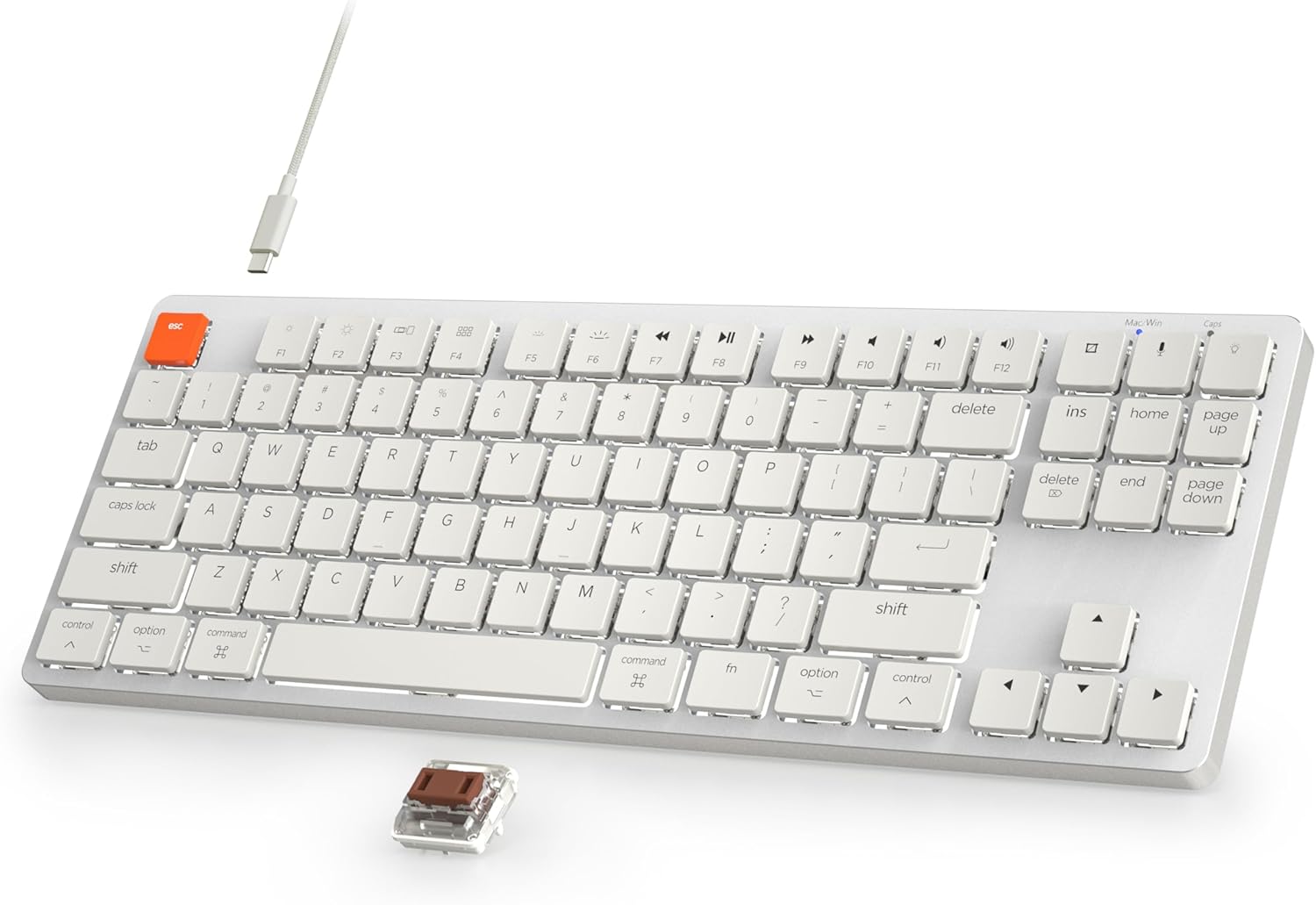
Figure 1: Taiahiro 201 Mechanical Keyboard. This image shows the full keyboard with its white keys and silver frame, connected via a white USB-C cable.
The Taiahiro 201 keyboard features an 87-key layout, providing a compact form factor without sacrificing essential functionality. It includes dedicated function keys and multimedia controls.
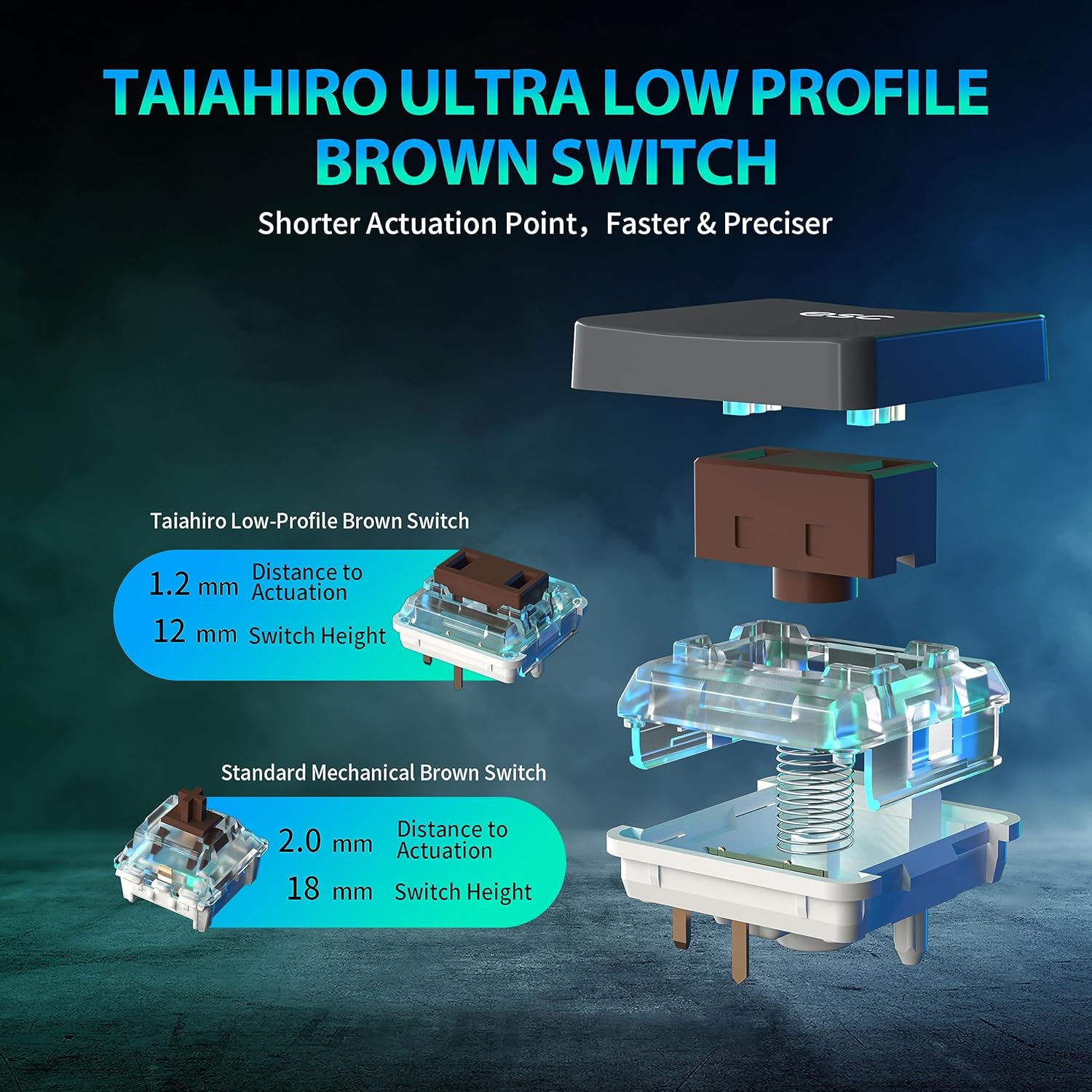
Figure 2: Taiahiro Low-Profile Brown Switch. This diagram illustrates the internal components and dimensions of the low-profile brown switch compared to a standard mechanical brown switch, highlighting its shorter actuation point and overall height.
The keyboard utilizes Taiahiro Low-Profile Brown Switches, designed for a shorter actuation point, resulting in faster and more precise keystrokes. The switch height is 12mm with a 1.2mm actuation distance.
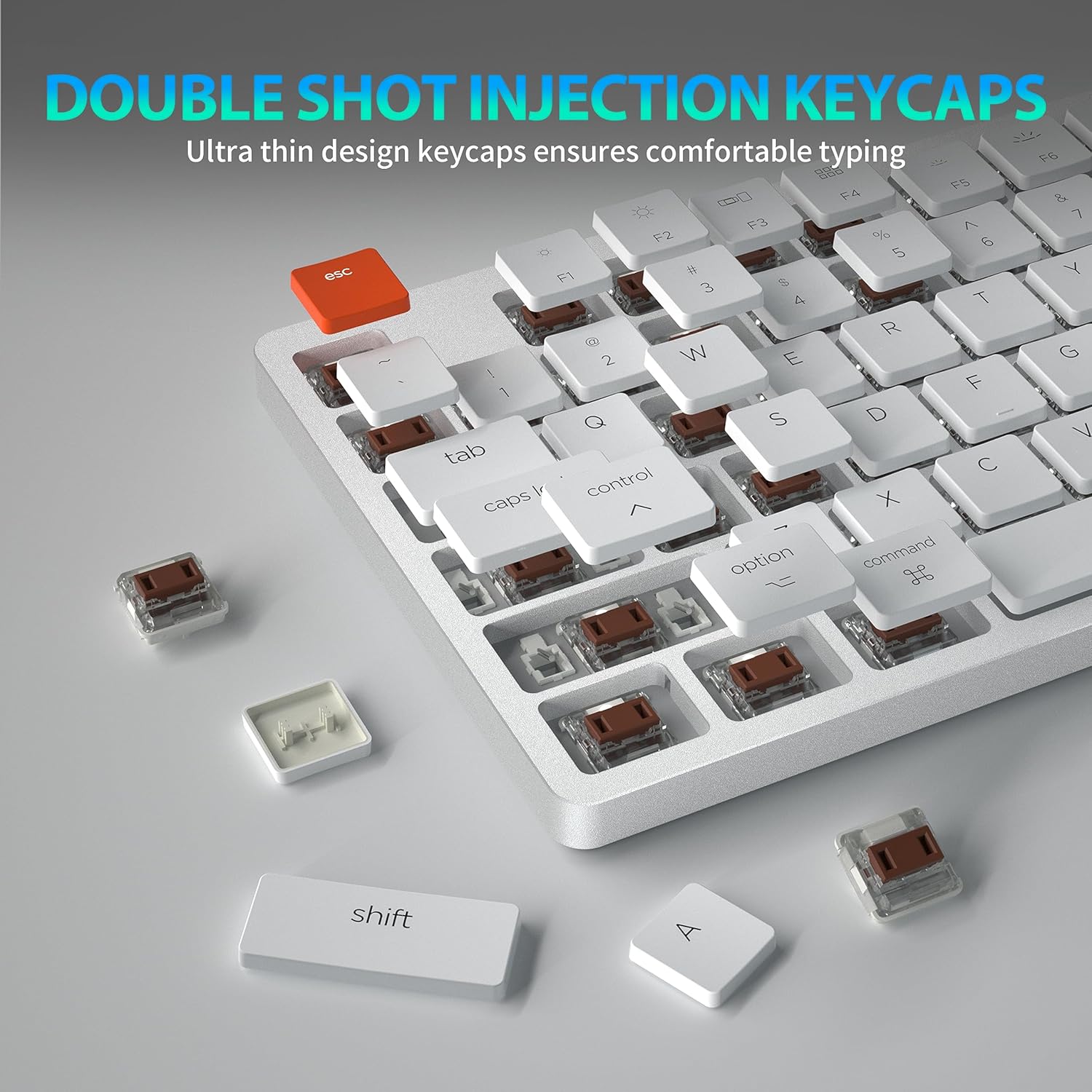
Figure 3: Double Shot Injection Keycaps. A close-up view of the keyboard showing several keycaps removed, revealing the double-shot injection molding process which ensures durability and clear legends.
Keycaps are manufactured using double shot injection, ensuring durability and preventing legends from fading over time. The ultra-thin design contributes to a comfortable typing experience.
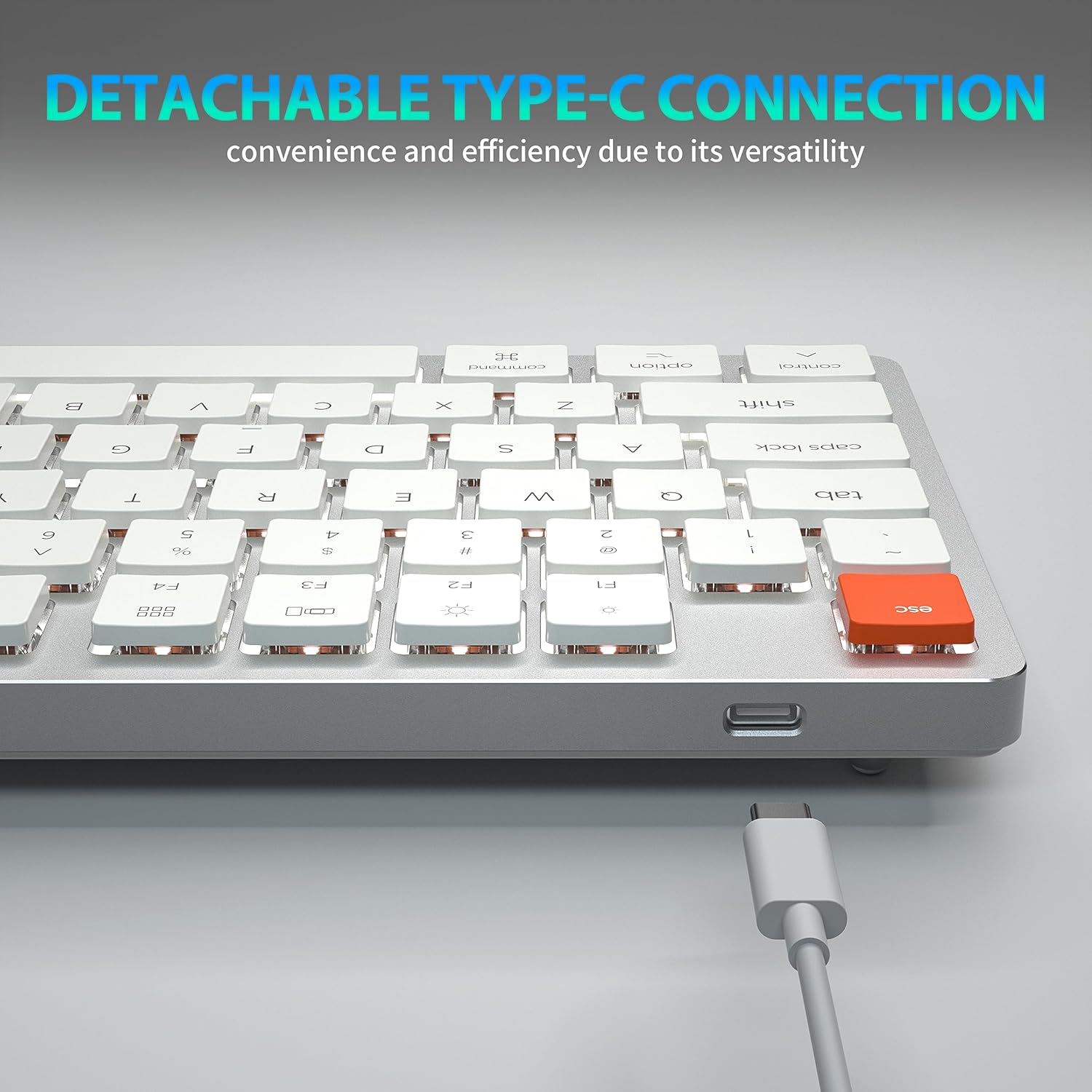
Figure 4: Detachable Type-C Connection. This image highlights the USB-C port on the keyboard and the detachable cable, emphasizing its versatility and ease of transport.
The keyboard features a detachable USB Type-C connection, offering convenience and efficiency due to its versatile and widely compatible interface.
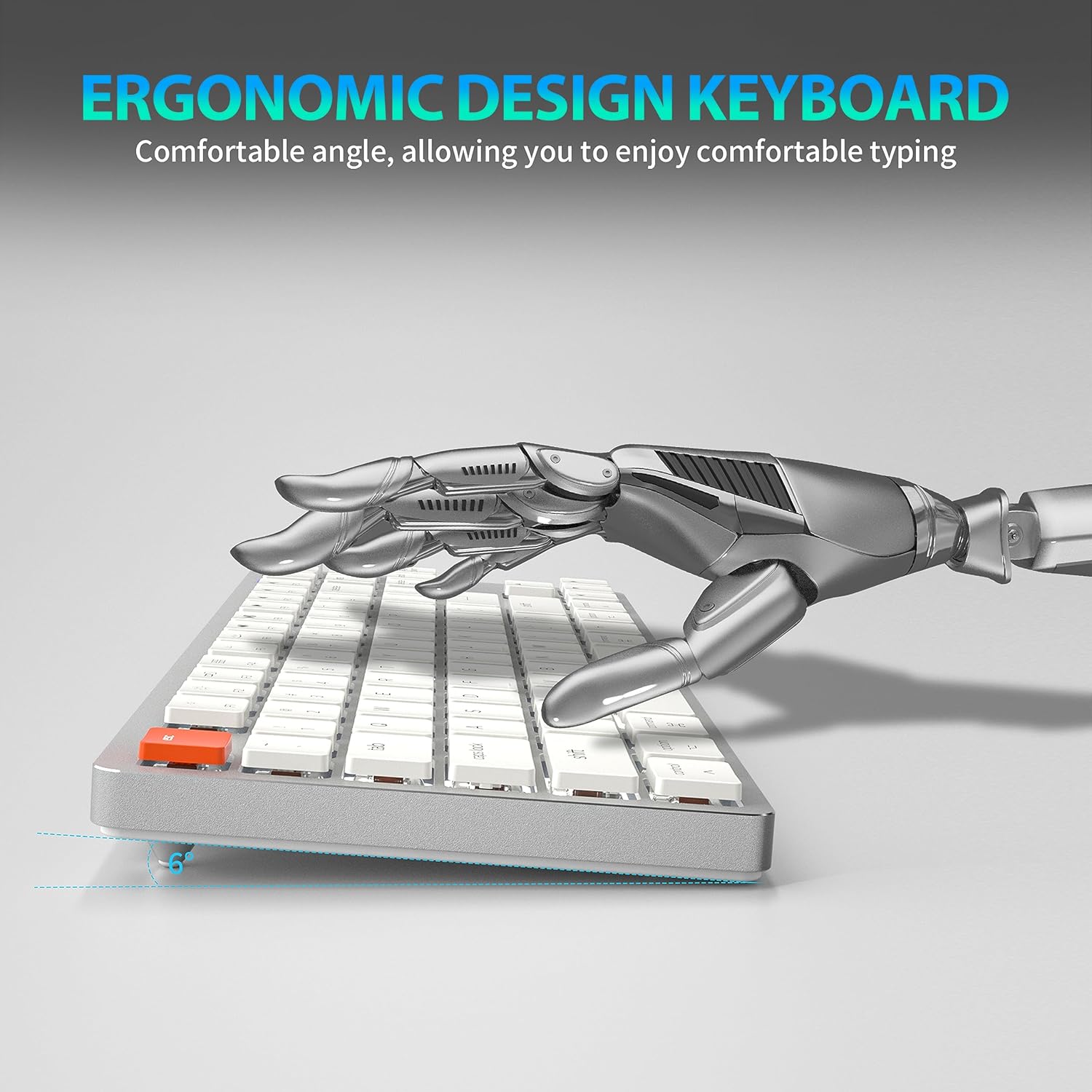
Figure 5: Ergonomic Design. A side view of the keyboard illustrating its comfortable typing angle, designed to reduce strain during extended use.
The ergonomic design provides a comfortable angle for typing, reducing wrist strain during prolonged use.
Damezirandin
Girêdana bi kabloyê (USB-C)
- Serê USB-C ya kabloya peyda kirî bi porta USB-C ya klavyeyê ve girêde.
- Connect the USB-A end of the cable to an available USB port on your computer or device.
- Klavyeyê dê bixweber were naskirin û ji bo karanînê amade be.
Girêdana Bêtêl (Bluetooth 5.1)
The keyboard supports stable Bluetooth 5.1 connectivity, allowing effortless switching between up to 3 devices.
- Piştrast bike ku klavyeyê tê şarj kirin an jî bi rêya USB-C ve girêdayî ye.
- Guhestina hêzê ya klavyeyê vekin (bi gelemperî li pişt an kêlekê ye).
- Ji bo ku têkevin moda hevberdanê, pêl bikin û bigirin Fn + Q, Fn + W, an Fn + E for 3-5 seconds. The indicator light for the selected channel (Q, W, or E) will flash rapidly, indicating it's ready for pairing.
- On your device (PC, laptop, tablet, phone), enable Bluetooth and search for new devices.
- Select "Taiahiro 201 Keyboard" (or similar name) from the list of available devices.
- Once connected, the indicator light will stop flashing and remain solid for a few seconds, then turn off.
- Ji bo guhertina di navbera cîhazên cotkirî de, tenê bikirtînin Fn + Q, Fn + W, an Fn + E.
Telîmatên Operating
Kontrola ronahiya paşerojê
The Taiahiro 201 keyboard features adjustable backlighting. Use the following key combinations to control the backlight:
- Fn + \ |: Cycle through backlight modes.
- Fn + ↑: Ronahiya paşperdeyê zêde bike.
- Fn + ↓: Ronahiya paşperdeyê kêm bike.
- Fn + ←Leza ronahiya paşîn kêm bike (ji bo modên dînamîk).
- Fn + →Leza ronahiya paşîn zêde bike (ji bo modên dînamîk).
Multimedia Keys and Function Keys
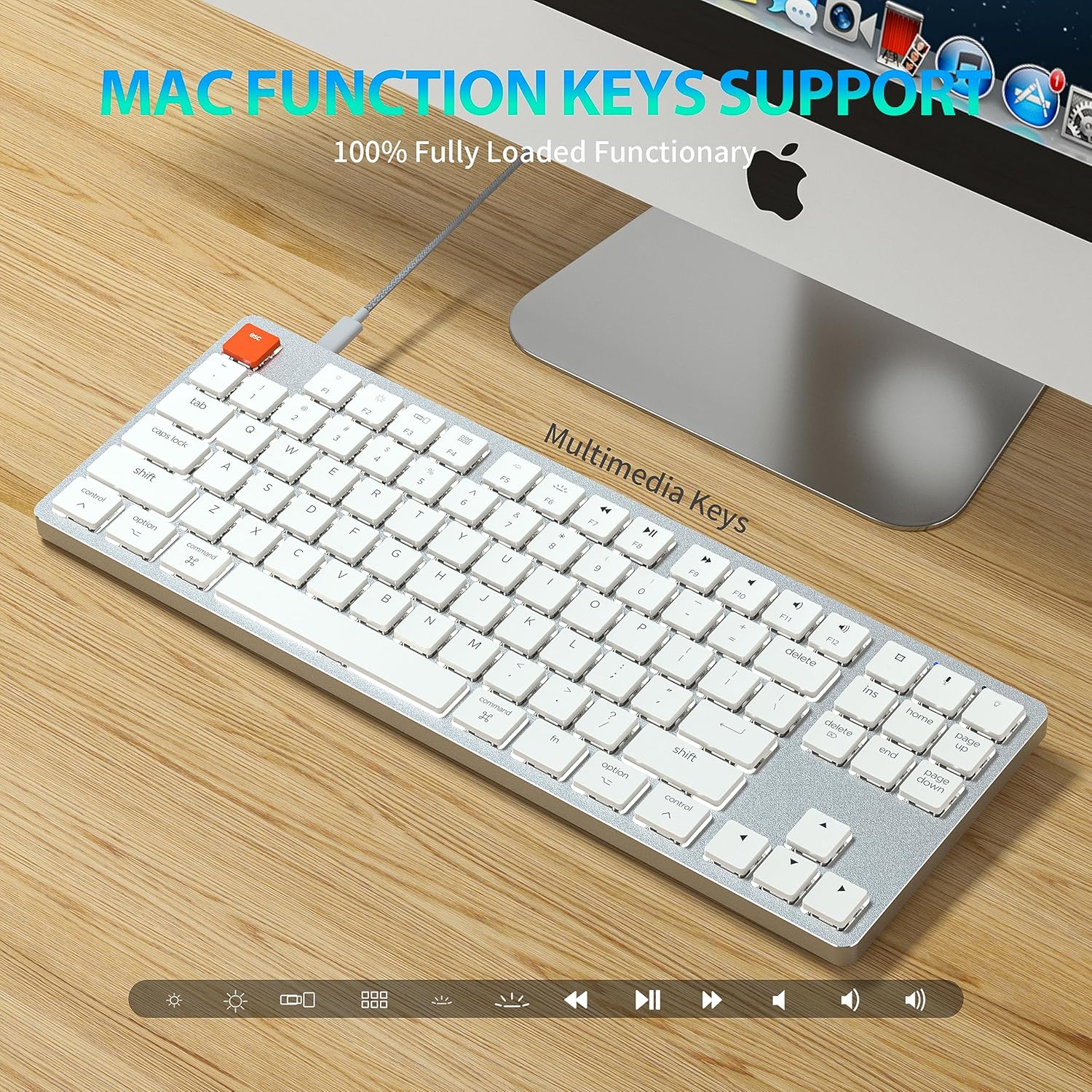
Figure 6: Mac Function Keys Support. This image shows the keyboard in a Mac setup, highlighting the multimedia and function keys (F1-F12) and their compatibility with macOS.
The keyboard supports full functionality for both Windows and Mac operating systems. Use the Fn key in combination with the F-keys for multimedia and system functions:
- Fn + F1: Decrease screen brightness
- Fn + F2: Increase screen brightness
- Fn + F3: Mission Control (Mac) / Task View (Windows)
- Fn + F4: Launchpad (Mac) / Search (Windows)
- Fn + F5: Backlight mode cycle
- Fn + F6: Backlight color cycle
- Fn + F7: Previous Track
- Fn + F8: Lîstik / Raweste
- Fn + F9: Track Next
- Fn + F10: Bêdeng
- Fn + F11: Volume Down
- Fn + F12: Volume Up
- Fn + A: Switch to Mac layout (Command/Option keys)
- Fn + S: Switch to Windows layout (Ctrl/Alt keys)
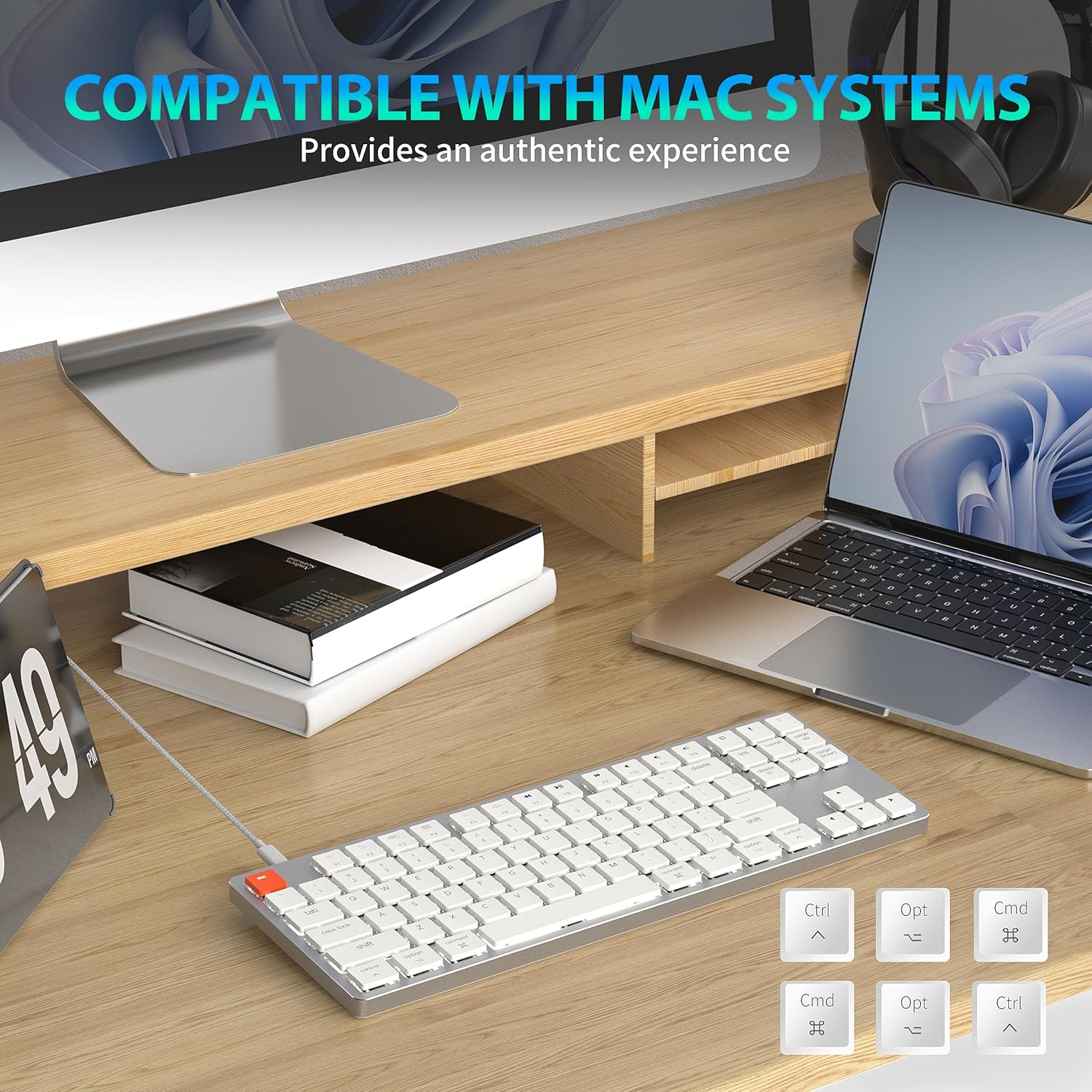
Figure 7: Compatibility with Mac Systems. This image shows the keyboard connected to a Mac setup, with an inset displaying alternative keycaps for Command, Option, and Control, indicating full compatibility and an authentic experience for Mac users.
The keyboard is fully compatible with Mac systems, providing an authentic experience with dedicated Mac function keys and layout options.
Lênerrînî
- Paqijî: Use a soft, dry cloth to wipe the keyboard surface. For deeper cleaning, gently remove keycaps and use compressed air to clear debris.
- Embarkirinî: Klavyeyê li cîhekî sar û hişk, dûr ji tîrêjên rojê yên rasterast û germahiyên zêde hilînin.
- Ragihandina Avê: Avoid exposing the keyboard to liquids. In case of spills, immediately disconnect the keyboard and allow it to dry completely before re-connecting.
Çareserkirina pirsgirêkan
Klavyeya Bersiv nade
- Moda Wired: Piştrast bike ku kabloya USB-C bi ewlehî hem bi klavyeyê û hem jî bi komputerê ve girêdayî ye. Portek an kabloyek USB-yê ya din biceribîne.
- Moda Wireless:
- Kontrol bike ka klavyeyê vekiriye an na.
- Piştrast bike ku klavyeyê tê şarj kirin.
- Piştrast bikin ku Bluetooth li ser cîhaza we çalak e.
- Re-pair the keyboard with your device (see Wireless Connection section).
- Ensure you are on the correct Bluetooth channel (Fn+Q/W/E).
Backlight Not Working/Dim
- Increase brightness using Fn + ↑.
- Bi karanîna modên paşperdeya paşîn ve bizivire Fn + \ |.
- Ensure the keyboard is not in a low-power state. Charge the keyboard if using wireless mode.
Pirsgirêkên Girêdana Bluetooth-ê
- Ensure the keyboard is within the effective range of your device.
- Destwerdana ji cîhazên din ên bêtêl kêm bikin.
- Re-pair the keyboard.
- Update Bluetooth drivers on your device if applicable.
Specifications
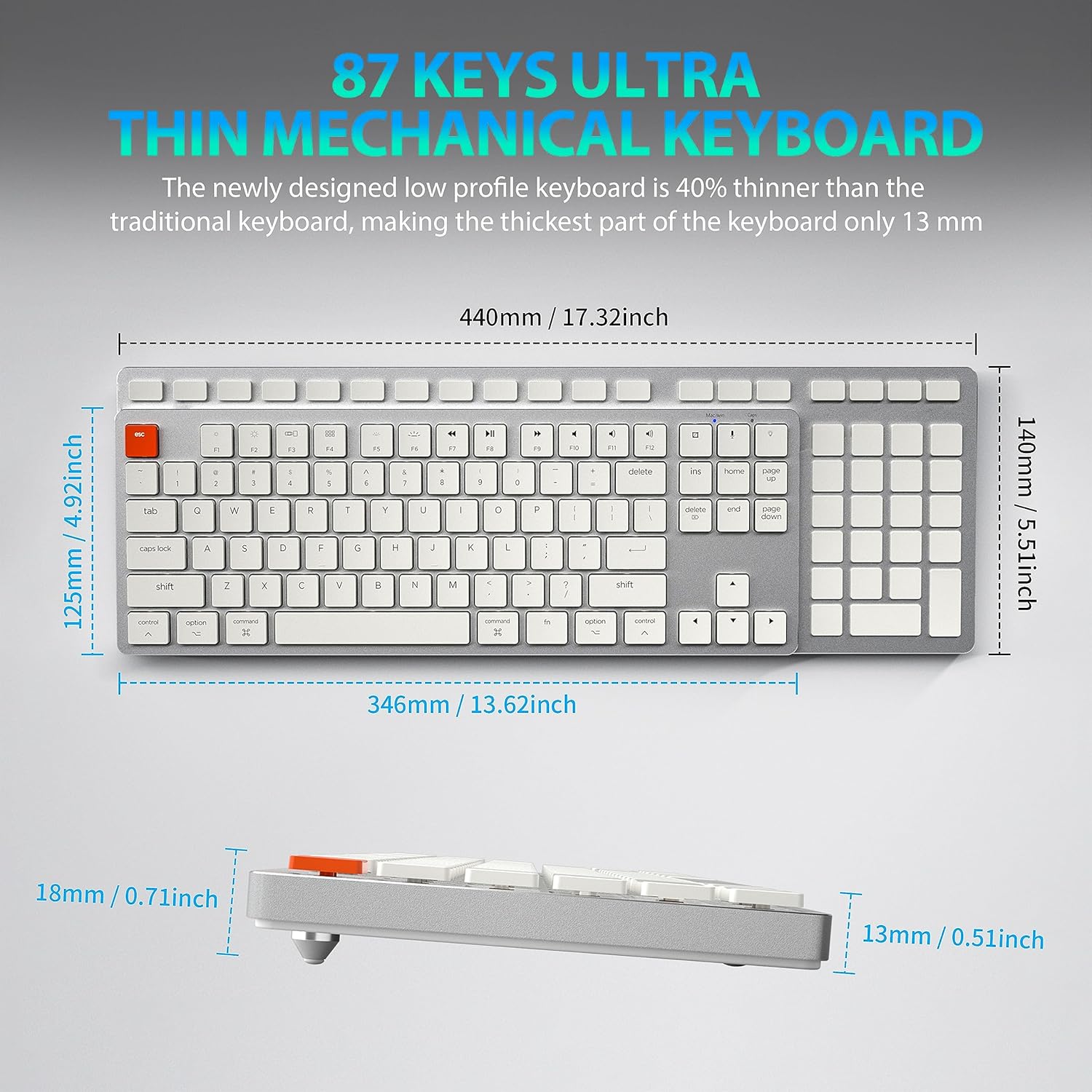
Figure 8: Keyboard Dimensions. This diagram provides precise measurements of the keyboard's length, width, and thickness, illustrating its ultra-thin profile.
| Nîşan | Taiahiro |
| Navê Model | 201 |
| Teknolojiya Girêdanê | Bluetooth, USB-C (Wired) |
| Danasîna Klavyeyê | Mekanîkî |
| Hejmara Keys | 87 |
| Taybetmendiya Taybet | Ergonomic, N-Key Rollover, Backlit |
| Amûrên Lihevhatî | PC, Laptop, Pad, Phone (Mac/Windows compatible) |
| Babetê Weight | 2.18 lîre |
| Mezinahiyên pakêtê | 16.93 x 6.69 x 1.54 inches |
| Çêker | Teknolojiya Taiahiro |
Garantî û Piştgirî
For warranty information and technical support, please refer to the contact details provided with your product packaging or visit the official Taiahiro website. Meqbûza kirîna xwe ji bo îdîayên garantiyê biparêzin.


