1. Destpêk
Thank you for choosing the seenda Bluetooth Keyboard ISJ-DJC04-2. This manual provides detailed instructions for setting up, operating, and maintaining your keyboard. Please read this manual thoroughly before use to ensure optimal performance and longevity of your device.
Taybetmendiyên sereke:
- Têkiliya Pir-Device: Connects to up to 3 devices simultaneously via Bluetooth.
- Ronahîkirina Paşve ya RGB: Features 7 LED backlight colors and 3 adjustable brightness levels for comfortable typing in various lighting conditions.
- Berhevoka gerdûnî: Supports Windows, Mac OS, Android, and iPad OS.
- Comfortable and Quiet Typing: Ergonomic design with scissor-switch keys for a precise and silent typing experience.
- Battery Rechargeable: Built-in 1500mAh lithium battery, rechargeable via Type-C port.
2. Sazkirin
2.1 Naveroka pakêtê
- seenda Bluetooth Keyboard ISJ-DJC04-2
- Kabloya barkirinê ya USB-C
- Manual Bikarhêner
2.2 Barkirina Destpêk
Before first use, fully charge the keyboard. Connect the provided USB-C cable to the keyboard's charging port and the other end to a USB power source (e.g., computer, USB wall adapter). The charging indicator light will show the charging status.
2.3 Hêzdarkirin/Off
Locate the power switch on the keyboard. Slide it to the 'ON' position to power on the keyboard. Slide it to the 'OFF' position to power off.
2.4 Hevberkirin bi Amûran re
The keyboard supports connecting to three different devices. Follow these steps to pair your keyboard:
- Klavyeyê vekin.
- Bişkojk û bigire Fn bişkojk û yek ji bişkojkên kanala Bluetooth-ê (BT1, BT2, an BT3) for 3-5 seconds until the corresponding indicator light flashes rapidly. This indicates the keyboard is in pairing mode.
- Li ser cîhaza xwe (komputer, tablet, smartphone), Bluetooth-ê çalak bike û li cîhazên berdest bigere.
- Select "seenda Keyboard" or a similar name from the list of found devices.
- If prompted, enter the pairing code displayed on your screen using the keyboard and press Derbasbûn.
- Once paired, the indicator light will stop flashing and remain solid for a few seconds before turning off. The keyboard is now connected.
Repeat these steps for up to two additional devices using the other Bluetooth channel keys (BT2, BT3).
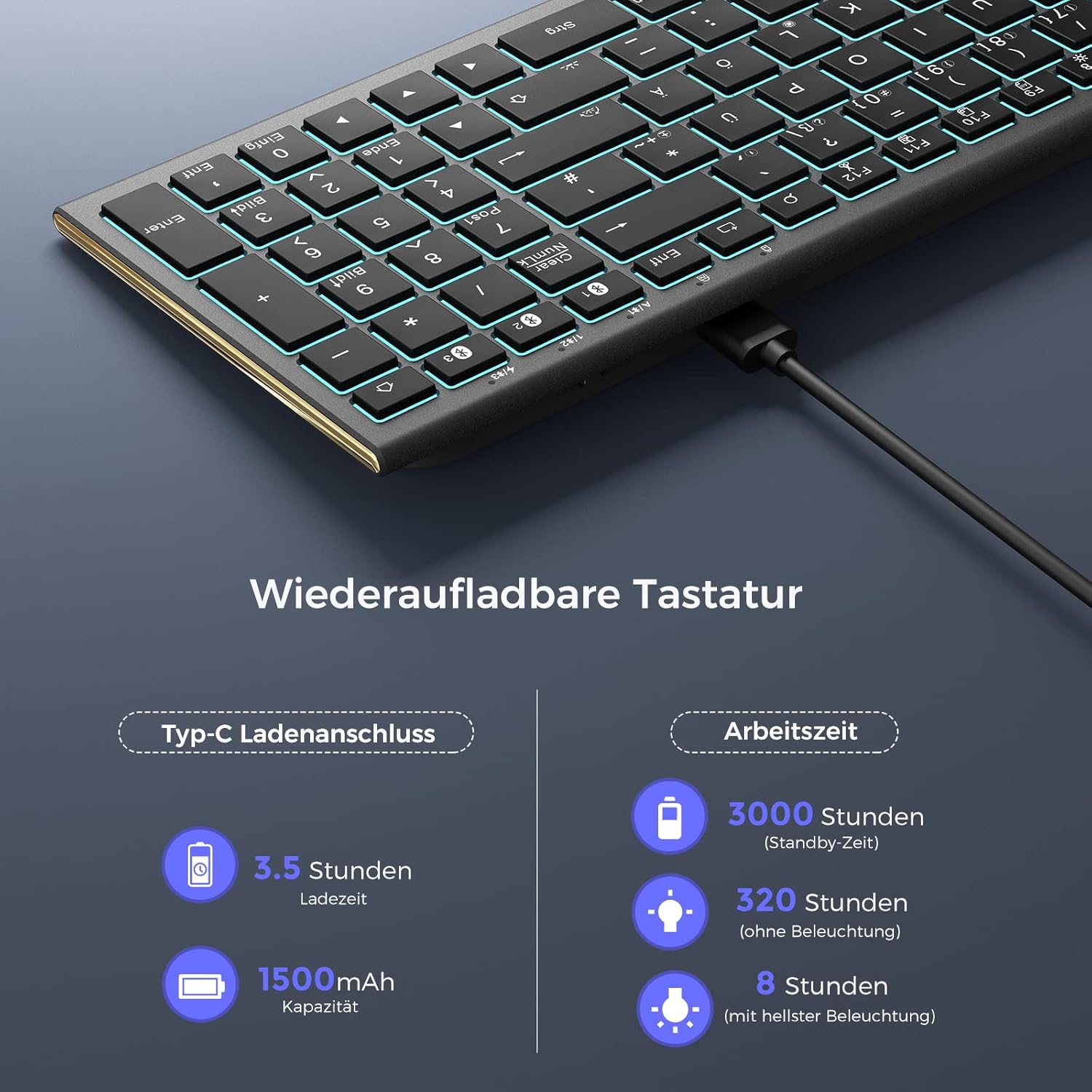
Image: Bluetooth connection diagram, illustrating how the keyboard connects to three separate devices (laptop, desktop, tablet) using distinct Bluetooth channels.
3. Telîmatên Operating
3.1 Guhertina Di Navbera Amûrên Girêdayî De
To switch between your paired devices, simply press the Fn bişkojka ligel bişkojka kanala Bluetooth-ê ya têkildar (BT1, BT2, an BT3) that your desired device is paired to. The keyboard will automatically connect to the selected device.

Image: Multi-device switching, demonstrating the use of Fn + BT1/BT2/BT3 keys to seamlessly transition between three connected Bluetooth devices.
3.2 Backlight Control
The keyboard features 7 different backlight colors and 3 brightness levels.
- Ronahiya paşde çalak/çalak bike: Rojnamevanî Fn + Light Bulb icon key to toggle the backlight on or off.
- Ronahîyê eyar bikin: Rojnamevanî Fn + Light Bulb icon key repeatedly to cycle through 3 brightness levels.
- Guhertina Rengê Ronahîkirina Paşîn: Rojnamevanî Fn + RGB icon key to cycle through the 7 available backlight colors.

Image: Backlight controls, showing the specific key combinations (Fn + Light Bulb icon, Fn + RGB icon) for adjusting backlight brightness and cycling through colors.
3.3 Bişkokên Multimedia û Kurterê
The keyboard includes dedicated function keys that can be used as multimedia controls or system shortcuts when combined with the Fn key. The specific functions may vary slightly depending on your operating system (Windows, Mac OS, Android, iPad OS).
| Kombînasyona Key | Karkirin |
|---|---|
| Fn + F1 | Bêdeng |
| Fn + F2 | Volume Down |
| Fn + F3 | Volume Up |
| Fn + F4 | Previous Track |
| Fn + F5 | Play/Pause |
| Fn + F6 | Next Track |
| Fn + F7 | Brightness Down |
| Fn + F8 | Ronahî Up |
| Fn + F9 | Hemî Hilbijêre |
| Fn + F10 | Kopî |
| Fn + F11 | Paste |
| Fn + F12 | Birrîn |
| Fn + Search icon | Gerr |
| Fn + Screenshot icon | Screenshot |
| Fn + Jêbirin | Jêbirin |

Image: Multimedia and shortcut keys, detailing the functions of the F-keys when used with the Fn modifier key.
4. Maintenance
4.1 Barkirina Klavyeyê
When the battery is low, the low battery indicator light on the keyboard will flash. Connect the keyboard to a power source using the USB-C cable to recharge. A full charge takes approximately 3.5 hours.
- Kapasîteya Pîl: 1500 mAh
- Dema barkirinê: Nêzîkî 3.5 saetan
- Dema Rawestandinê: Heta 3000 saetan
- Working Time (without backlight): Heta 320 saetan
- Working Time (with brightest backlight): Heta 8 saetan

Image: Rechargeable keyboard, highlighting the Type-C charging port and providing details on charging time and battery life under different usage conditions.
4.2 Paqijkirin
To clean your keyboard, power it off and disconnect it from any devices. Use a soft, lint-free cloth slightly dampened with water or a mild cleaning solution. Avoid excessive moisture and do not spray cleaners directly onto the keyboard. For dust and debris between keys, use compressed air.
5. Destpêkirin
If you encounter issues with your keyboard, please refer to the following common problems and solutions:
- Klavyeyê ve girêdayî nabe:
- Piştrast bike ku klavyeyê vekiriye û bi tevahî şarj kiriye.
- Piştrast bike ku Bluetooth li ser cîhaza we çalak e.
- Piştrast bike ku klavyeyê di moda cotkirinê de ye (ronahiya nîşaneyê dibiriqe).
- Try unpairing and re-pairing the keyboard on your device.
- Ensure the correct Bluetooth channel (BT1, BT2, or BT3) is selected for your device.
- Bişkok bersivê nadin:
- Check the battery level and charge the keyboard if necessary.
- Piştrast bike ku klavyeyê bi rêkûpêk bi cîhaza xwe ve girêdayî ye.
- Amûra xwe û klavyeyê ji nû ve bidin destpêkirin.
- Ronahiya paşîn naxebite:
- Bi karanîna wê, piştrast bikin ku ronahiya paşîn vêketiye Fn + Light Bulb icon key.
- Check the battery level; low battery might disable backlighting.
- Lag or delayed input:
- Ensure there are no strong interferences (e.g., other wireless devices) nearby.
- Klavyeyê nêzî cîhaza xwe bikin.
- Piştrast bike ku ajokarên Bluetooth-ê yên cîhaza te nûve ne.
6. Specifications
| Taybetî | Hûrî |
|---|---|
| Nîşan | seenda |
| Cins | ISJ-DJC04-2 |
| Teknolojiya Girêdanê | Bluetooth (Version 5.1 and higher) |
| Rêzeya bêhêl | Heta 10 metreyan |
| Amûrên Lihevhatî | Computer, Laptop, Smartphone, Tablet |
| Pergalên Xebatê | Windows, Mac OS, Android, iPad OS |
| Danasîna Klavyeyê | Multifunctional |
| Taybetmendiyên Taybet | Ergonomic, Shortcut and multimedia keys, Rechargeable, Backlit (RGB) |
| Rengên Ronahiya Paşê | 7 rengên RGB |
| Asta Ronahî | 3 astên |
| Çavkaniya Hêzê | Battery Powered (Lithium metal) |
| Kapasîteya Pîl | 1500 mAh |
| Charging Port | Tîpa-C |
| Switch Type | Scissor Switch |
| Layout Klavyeyê | QWERTZ |
| Bikaranîna Pêşniyar kirin | Dayre |
7. Garantî û Piştgirî
For warranty information and customer support, please refer to the documentation provided with your purchase or contact the retailer/manufacturer directly. Keep your proof of purchase for warranty claims.


