1. Destpêk
This manual provides comprehensive instructions for setting up, operating, and maintaining your Microsoft Surface Go 2 tablet. The Surface Go 2 is a versatile 10.5-inch touch-screen device, powered by an Intel Pentium processor, 8GB of RAM, and a 128GB SSD, running Windows 10. It is designed for portability and efficiency, suitable for various tasks from productivity to entertainment.
2. Pêkhateyên û Port
Familiarize yourself with the physical components and connection ports of your Surface Go 2.
2.1 Device Serview
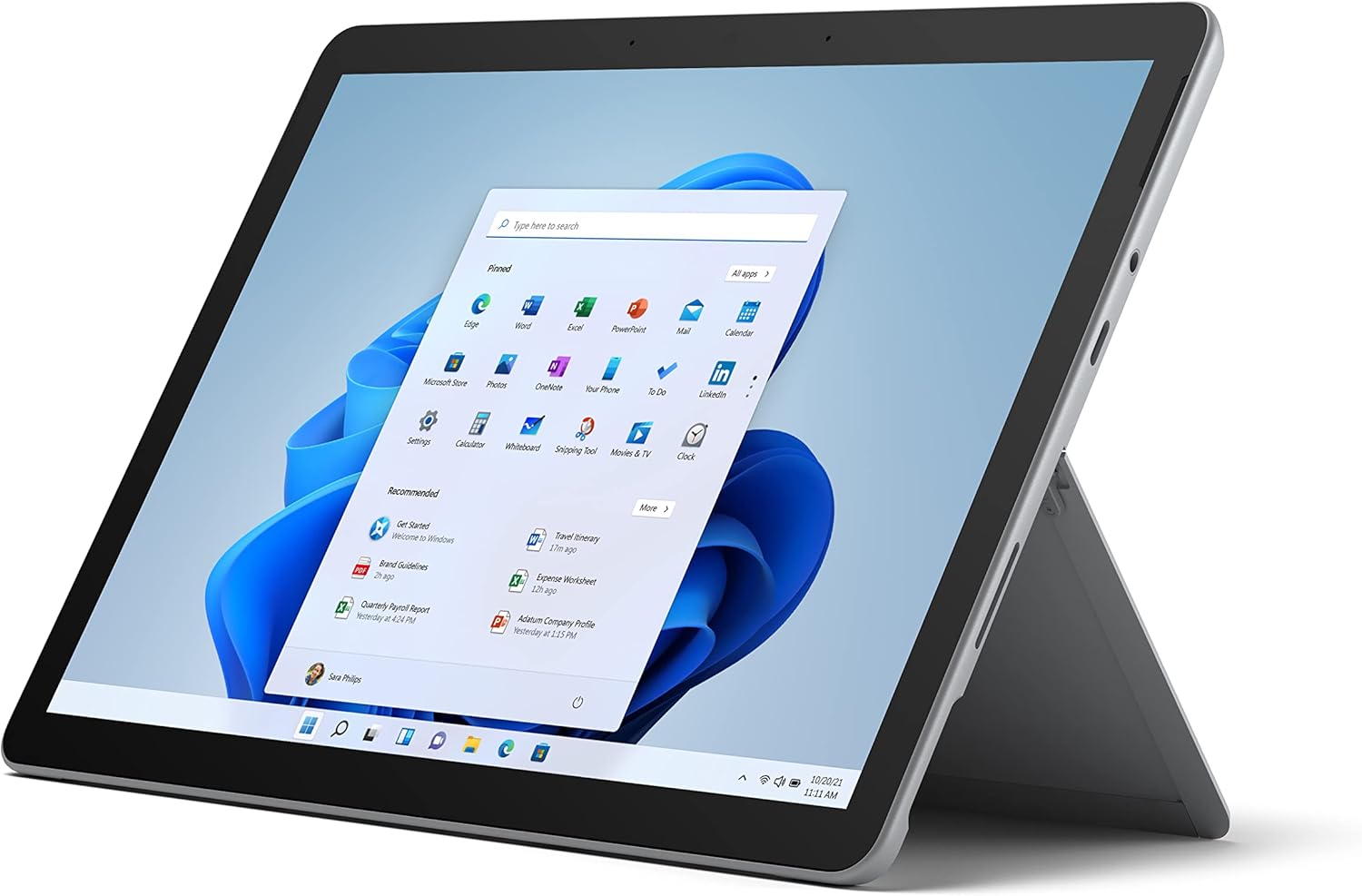
Figure 2.1: Microsoft Surface Go 2 tablet in landscape orientation, showcasing the Windows desktop interface.
2.2 Side Ports and Buttons
- Porta USB Type-C: For data transfer, video output, and charging.
- 3.5 mm Headphone Jack: Ji bo girêdana guhdarokan an cîhazên dengî yên derveyî.
- Porta Girêdana Rûyê: Magnetic port for charging and connecting to Surface Dock (sold separately).
- Xwendevanê Karta MicroSD: Ji bo berfirehkirina hilanînê bi qerta microSD.
- Bişkokên Dengê: Ji bo verastkirina dengê deng.
- Bişkojka Hêzê: Ji bo vemirandin/vemirandina cîhazê an jî danîna wê bo xewê.

Wêne 2.2: Pisporekî alîfile of the Surface Go 2, illustrating the various ports and buttons along its edge.
2.3 Rawestgeha Yekbûyî
The Surface Go 2 features an integrated kickstand on the back, allowing for multiple viewing angles. This enables comfortable use in various modes, such as tablet, laptop (with Type Cover), or studio mode.

Figure 2.3: The Surface Go 2 with its Type Cover keyboard attached and the kickstand deployed, demonstrating its laptop-like configuration.
3. Setup Destpêk
Follow these steps to set up your Surface Go 2 for the first time.
3.1 Vekirin û Mîhengkirina Bingehîn
- Amûrê barkirin: Connect the included power adapter to the Surface Connect port on your device and plug it into a power outlet.
- Hêzdarkirin: Press and hold the power button located on the top edge of the device until the Microsoft logo appears on the screen.
- Fermanên li ser ekranê bişopînin: The device will guide you through selecting your region, language, and connecting to a Wi-Fi network.
- Microsoft Account Setup: Sign in with an existing Microsoft account or create a new one. This is essential for accessing Microsoft services and applications.
- Mîhengên Nepenîtiyê: Review and adjust your privacy settings as prompted.
- Windows Silav: Set up facial recognition for faster and more secure sign-in (optional).
4. Telîmatên Operating
The Surface Go 2 offers flexible interaction methods.
4.1 Navîgasyona Ekrana Destî
The 10.5-inch PixelSense display supports 10-point multi-touch. You can navigate Windows 10 using gestures similar to a smartphone or tablet:
- Dîk: Tiştan hilbijêre an jî sepanan veke.
- Bişo: Di nav naverokê de bigerin an jî di navbera ekranan de bigerin.
- Biçipîne bo Zoomkirinê: Mezinahiya naverokê mezin bikin an kêm bikin.
- Çapemenî û Bihêle: Access context menus (right-click equivalent).
4.2 Using the Type Cover Keyboard (Sold Separately)
Attach the Type Cover keyboard to transform your Surface Go 2 into a laptop. The keyboard connects magnetically to the bottom edge of the tablet.
- Pêvek: Align the Type Cover with the magnetic connector at the bottom of the Surface Go 2 until it snaps into place.
- Tîpkirin: Use the physical keys for efficient text input.
- Trackpad: The integrated trackpad allows for precise cursor control and multi-touch gestures.

Figure 4.1: The Surface Go 2 tablet separated from its Type Cover keyboard, illustrating the modular design.
4.3 Using the Surface Pen (Sold Separately)
The Surface Pen (sold separately) enhances creativity and productivity, allowing for natural writing and drawing directly on the screen.

Figure 4.2: The Surface Go 2 tablet displayed with a compatible Surface Pen, highlighting its digital inking capabilities.
5. Maintenance
Proper care ensures the longevity and performance of your Surface Go 2.
- Paqijkirina ekranê: Kîçek nerm, bêpişk bi kar bînin dampened with water or an approved screen cleaner. Avoid harsh chemicals.
- Paqijkirina laşê cîhazê: Li derve bi qumaşê nerm û hişk paqij bikin.
- Nûvekirinên Nermalavê: Ji bo ku performans û ewlehiya çêtirîn misoger bikin, bi rêkûpêk nûvekirinên Windows-ê kontrol bikin û saz bikin. Biçin Mîheng > Nûvekirin û Ewlehî > Nûvekirina Windows-ê.
- Lênêrîna Pîl: To maximize battery lifespan, avoid extreme temperatures and try to keep the battery charge between 20% and 80% when possible.
- Rêvebiriya hilanînê: Demkî bi awayekî periyodîk paqij dibe files and unnecessary data to free up storage space. Go to Settings> Pergal> Storage.
6. Destpêkirin
Pirsgirêkên hevpar û çareseriyên wan.
- Cîhaz Venedibe: Piştrast bike ku cîhaz şarj bûye. Adaptora hêzê ve girêbide û çend deqeyan li bendê bimîne berî ku dîsa hewl bidî vê yekê bikî.
- Ekrana destî bersiv nade: Restart the device. If the issue persists, check for pending Windows updates or consider a system restore.
- Pirsgirêkên Têkiliya Wi-Fi: Verify your Wi-Fi network is active. Restart your router and the Surface Go 2. Check Wi-Fi settings on the device.
- Performansa Hêdî: Serlêdanên nehewce bigire. Pêvajoyên paşperdeyê yên ku çavkaniyên zêde dixwin kontrol bike (Rêvebirê Peywiran). Cihê hilanîna vala ya têr peyda bike.
- Pîl Bi Zû zuwakirin: Adjust screen brightness, disable unnecessary background apps, and ensure all software is up to date.
7. Specifications
| Taybetî | Hûrî |
|---|---|
| Pêşkêşî | 10.5" PixelSense 10-Point Touch Display |
| Resolution | 1920 x 1280 (216 ppi) |
| Processor | 1.6 GHz Intel Pentium 4425Y Dual-Core Processor |
| BERAN | 8 GB |
| Embarkirinî | 128 GB SSD |
| Graphics | Intel HD Graphics 615 ya yekbûyî |
| Wireless | Wi-Fi 5 (802.11ac) | Bluetooth 4.1 |
| Cameras | 8MP Rear Camera | 5MP Front Camera |
| Ports | USB Type-C, 3.5 mm Headphone Jack, Surface Connect, MicroSD Card Reader |
| Battery Life | Heta 9 saetan (bikaranîna tîpîk) |
| Operating System | Windows 10 |
| Pîvan | 1.15 lbs (nêzîkî) |
| Dimensions | 6.8 x 9.64 x 0.32 inches |
8. Garantî û Piştgirî
This Microsoft Surface Go 2 is a renewed product. Renewed products are eligible for replacement or refund under the Amazon Renewed Guarantee if you are not satisfied with your purchase. For specific terms and conditions, please refer to the Amazon Renewed program details.
For further technical support or inquiries, please visit the official Microsoft Surface support webmalperê an bi karûbarê xerîdar a wan re têkilî daynin.


