Pêşkêş
This manual provides instructions for the setup, operation, and maintenance of your Microsoft Wireless Comfort Desktop 5000. This product combines a wireless keyboard and a wireless mouse designed for comfortable and efficient computer interaction.
The Microsoft Wireless Comfort Desktop 5000 features an ergonomically designed Comfort Curve keyboard and a mouse utilizing BlueTrack Technology for versatile surface tracking. It operates on a 2.4 GHz wireless connection, offering a reliable connection with a range of up to 30 feet.
Setup Guide
Di Box çi ye
- Microsoft Wireless Comfort Desktop 5000 Keyboard
- Microsoft Wireless Comfort Desktop 5000 Mouse
- USB Mini-Transceiver
- 2 AA Alkaline Batteries (for keyboard)
- 1 AA Alkaline Battery (for mouse)
Pêdiviyên Sîstemê
- Pergala Xebatê: Windows 8, Windows 7, Windows Vista, Windows XP (excluding Windows XP 64-bit)
- Hard Drive: 100 MB free space
- Bender: port USB
Sazkirina Pîlê
The keyboard requires two AA alkaline batteries, and the mouse requires one AA alkaline battery. Batteries are included with the product.
- Beşa pîlê li binê klavyeyê û mişkê bibîne.
- Berga beşa pîlê vekin.
- Insert the AA batteries, ensuring correct polarity (+/-).
- Qapaxa beşa pîlê bi ewlehî bigire.
Connecting the Wireless Transceiver
The wireless desktop set connects to your computer via a USB mini-transceiver.
- Locate the USB mini-transceiver. It may be stored in the mouse's battery compartment for transport.
- Insert the USB mini-transceiver into an available USB port on your computer.
- Divê kompîtura we bixweber ajokarên pêwîst bibîne û saz bike. Ev pêvajo dibe ku çend kêliyan bidome.
- Once drivers are installed, the keyboard and mouse should be ready for use.

Figure 1: The compact USB mini-transceiver for wireless connection.

Figure 2: The underside of the mouse showing the storage slot for the USB mini-transceiver.
Telîmatên Operating
Taybetmendiyên Klavyeyê

Wêne 3: Ji jor ber bi jêr ve view of the Comfort Curve keyboard layout.
- Comfort Curve Design: The keyboard features an ergonomist-approved Comfort Curve design that encourages a natural wrist posture, reducing strain during extended use.
- Quiet Touch Keys: Experience comfortable typing with low-profile, quiet-touch keys.
- Palm Rest: A soft-touch palm rest is integrated to provide additional comfort and support for your wrists.
- Removable Feet: Adjustable feet on the underside allow you to set the keyboard at a preferred angle for a more comfortable wrist posture.
- Taskbar Favorites for Windows 7: Easily access programs pinned to the Windows Taskbar using dedicated shortcut keys. The keys automatically adapt if you rearrange icons in the Taskbar.
- Media Center Controls: Control media playback directly from your keyboard using dedicated media keys (e.g., play/pause, volume up/down, mute).

Wêne 4: Bişkavkirî view highlighting the integrated palm rest and Comfort Curve design.
Taybetmendiyên Mişk

Wêne 5: Bişkavkirî view of the wireless mouse.
- Teknolojiya BlueTrack: The mouse utilizes Microsoft's BlueTrack Technology, combining the power of optical with the precision of laser for remarkable tracking on virtually any surface, including granite, carpet, and wood.
- Çêkirina Çaralî: The tilt wheel allows for four-way scrolling (up, down, left, and right), enhancing efficiency and comfort when navigating documents or web rûpelan.
- Bişkokên Xweserî: The mouse buttons can be customized for quick access to programs, files, media, and webpages you use most often. Refer to your operating system's mouse settings for customization options.
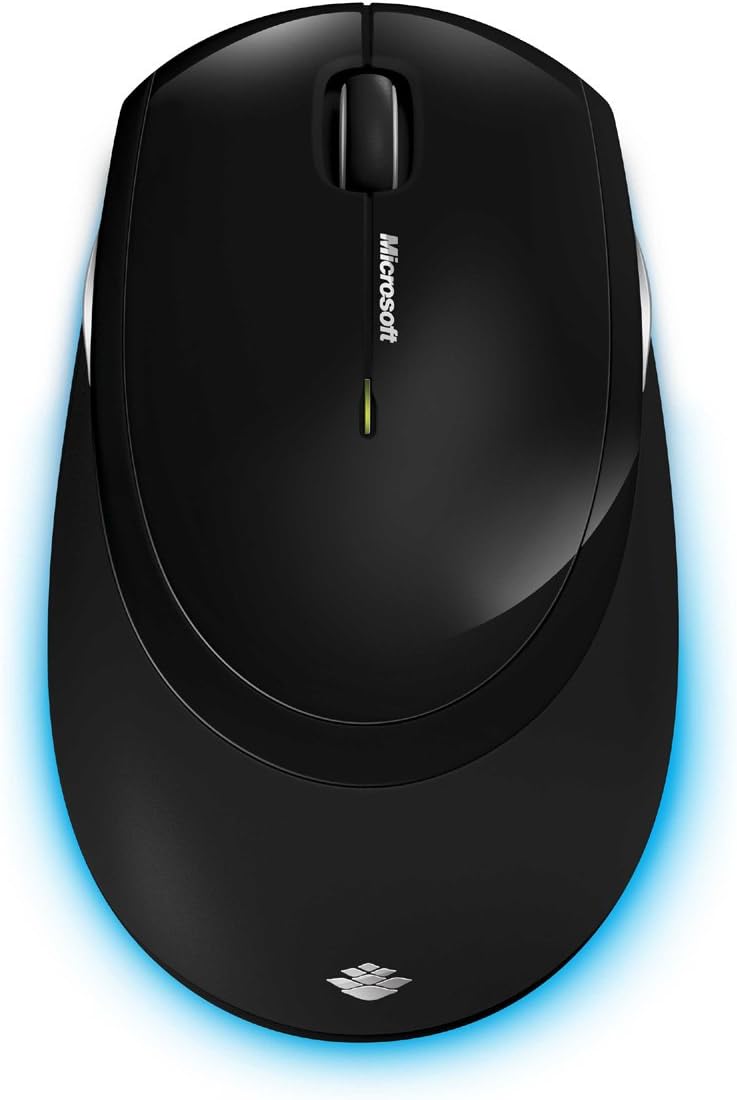
Wêne 6: Ji jor ber bi jêr ve view of the wireless mouse.
Lênerrînî
Paqijî
To maintain the performance and appearance of your Microsoft Wireless Comfort Desktop 5000, follow these cleaning guidelines:
- Disconnect the USB transceiver from your computer before cleaning.
- Kîçek nerm, bêpişk bi kar bînin dampbi avê an jî çareseriyek paqijkirina nerm.
- Avoid using harsh chemicals, abrasive cleaners, or solvents, as these can damage the surfaces.
- For the keyboard, you can use compressed air to remove dust and debris from between the keys.
- For the mouse, gently wipe the optical sensor area on the bottom to ensure optimal tracking performance.
Guhertina Pîl
When the batteries are low, the indicator light on the keyboard or mouse may flash. Replace the batteries as described in the "Battery Installation" section under Setup Guide.
- Always use new, high-quality AA alkaline batteries.
- Pîlên bikar anîne li gorî rêzikên herêmî bavêjin.
Çareserkirina pirsgirêkan
Pirsgirêkên Girêdanê
- No response from keyboard/mouse:
- Ensure the USB mini-transceiver is securely plugged into a working USB port on your computer.
- Check if the batteries in the keyboard and mouse are correctly installed and have sufficient charge. Replace if necessary.
- Try plugging the transceiver into a different USB port.
- Komputera xwe ji nû ve bidin destpêkirin.
- Acizkirin:
- The 2.4 GHz wireless technology can be affected by other wireless devices. Move the transceiver closer to the keyboard and mouse, or move other wireless devices away.
- Avoid placing the transceiver near large metal objects, which can block the wireless signal.
Pirsgirêkên Şopandina Mişkê
- Erratic or no tracking:
- Ensure the BlueTrack sensor on the bottom of the mouse is clean and free of debris.
- Try using the mouse on a different surface. While BlueTrack is versatile, highly reflective or transparent surfaces (like clear glass) may still cause issues.
Specifications
| Taybetî | Hûrî |
|---|---|
| Nîşan | Microsoft |
| Hejmara Model | CSD-00001 |
| Teknolojiya Girêdanê | Wireless (USB Transceiver) |
| Cure Wireless | Frekansa Radyoya 2.4 GHz |
| Amûrên Lihevhatî | Komputera Kesane |
| Compatibility System Operating | Windows 8, Windows 7, Windows Vista, Windows XP (excluding Windows XP 64-bit) |
| Reng | Reş |
| Babetê Weight | 2.9 lîre |
| Mezinahiyên hilberê (LxWxH) | 8.7 x 2.9 x 18.54 inches |
| Çavkaniya Hêzê | Battery Powered |
| Batteries Required | 3 AA batteries (2 for keyboard, 1 for mouse) |
| Dîroka Yekem Berdest | 29 Tîrmeh 2009 |
Agahî Garantî
Specific warranty details for the Microsoft Wireless Comfort Desktop 5000 are not provided within this manual. For comprehensive warranty information, including terms, conditions, and duration, please refer to the official Microsoft website or the warranty card included with your product packaging.
Alîkarî
For further assistance, technical support, or to download the latest drivers and software for your Microsoft Wireless Comfort Desktop 5000, please visit the official Microsoft support webmalper:
You can also visit the Microsoft Store on Amazon for product information and related accessories:
Agahiya Girîng
Daxuyaniya Hiqûqî
Please note that the "Legal Disclaimer" provided with the product pertains to sales terms and conditions, such as return policies and shipping details, and is separate from the operational instructions in this user manual. For specific product usage and safety guidelines, please refer to the relevant sections of this manual.


