
Pêşkêş
Thank you for choosing the CRUA 27-inch 4K UHD 144Hz IPS Gaming Monitor. This monitor is designed to deliver an immersive visual experience with its high resolution, fast refresh rate, and vibrant color reproduction. This manual provides essential information for the proper installation, operation, and maintenance of your new monitor. Please read it thoroughly before use and retain it for future reference.
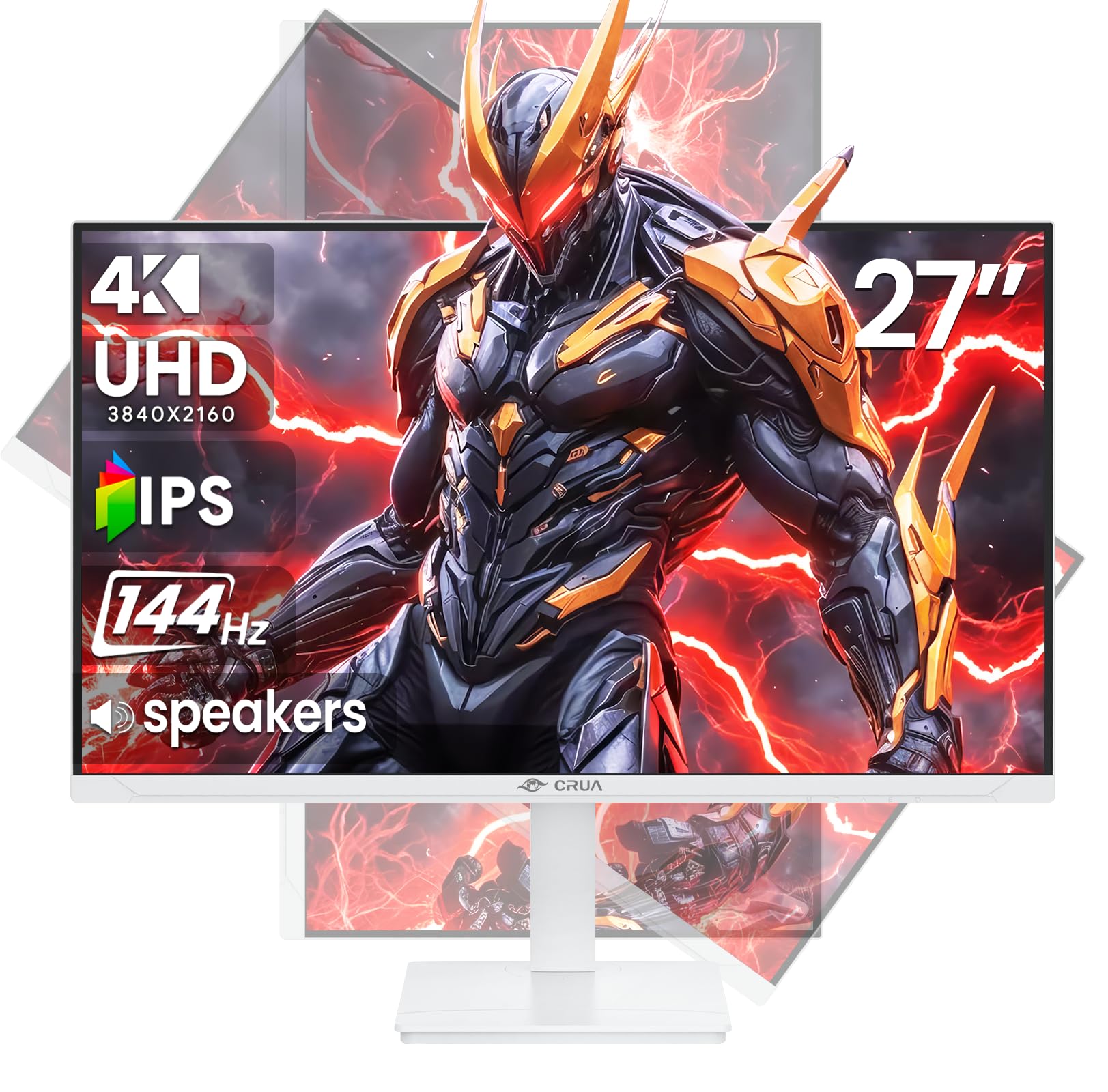
Wêne: Pêşî view of the CRUA 27-inch 4K UHD 144Hz IPS Gaming Monitor.
Di Box çi ye
Ji kerema xwe naveroka pakêta xwe kontrol bikin. Ger tiştek wenda be an jî zirar dîtibe, bi firoşkarê xwe re têkilî daynin.
- Monitor 27-inch
- DP Cable
- Base and Support
- Manual Bikarhêner
- Navê min
Taybetmendiyên Hilberê
- 27" 4K Display with IPS Panel: Experience ultra-clear visuals with a 3840x2160P resolution.
- 144Hz Rêjeya Refresh: Enjoy fluid and sharp motion, ideal for competitive gaming and fast-paced content.
- Rastbûna Rengê sRGB 120%: Delivers rich and accurate tones with 350cd/m² brightness and 1000:1 high-contrast.
- Axaftvanên çêkirî: Provides clear audio for daily use.
- Full Ergonomic Adjustment: Features height, pivot, tilt, and rotation adjustments for optimal viewing angles.
- Vebijarkên Girêdanê yên Pirjimar: Equipped with 2x HDMI 2.1 and 2x DP 1.4 ports.
- AMD FreeSync Support: Synchronizes the monitor's refresh rate with your GPU for tear-free gaming.
- Mountable Dîwar: Supports VESA 75mm x 75mm wall mounts for flexible installation.
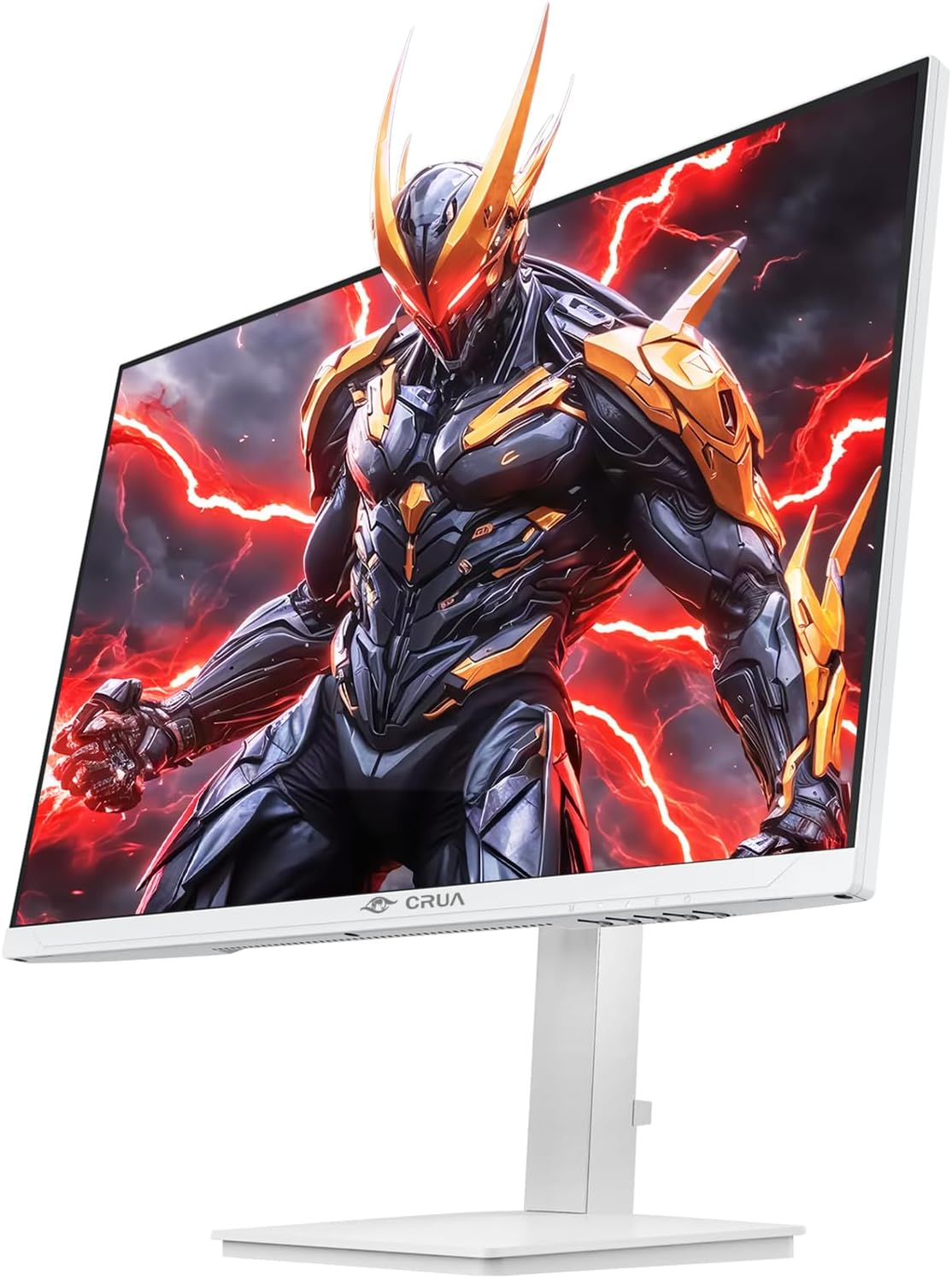
Wêne: Pêşî view of the CRUA 27-inch 4K UHD 144Hz IPS Gaming Monitor displaying a game scene.

Wêne: Paş view of the CRUA 27-inch 4K UHD 144Hz IPS Gaming Monitor showing the stand and RGB lighting.

Wêne: Paş view of the CRUA 27-inch 4K UHD 144Hz IPS Gaming Monitor highlighting the input ports (2x DP 1.4, 2x HDMI 2.1, and 3.5mm Audio Port).

Image: Diagram illustrating the adjustable height (110mm), tilt (-5° to +15°), swivel (±30°), and pivot (90°) features of the CRUA 27-inch 4K UHD 144Hz IPS Gaming Monitor.
Talîmatên Setup
1. Komkirina Standê
- Monitor û pêkhateyên standê bi baldarî ji pakêtê derxînin.
- Stûyê standê bi panela monitorê ve girêde. Piştrast bike ku bi ewlehî li cihê xwe çikiyaye an jî, heke hebe, bi pêçan ve hatiye girêdan.
- Attach the base to the stand neck, securing it with the thumb screw or other fasteners.
- Monîtorê ku hatiye komkirin li ser rûyekî sabît û dûz deyne.
2. Çêkirina Dîwar (Vebijarkî)
The monitor supports VESA 75mm x 75mm wall mounts. Remove the stand before attaching a compatible wall mount bracket (not included). Follow the instructions provided with your wall mount.
3. Girêdana Cables
- Erk: Connect the power supply to the monitor's power input and then to a power outlet.
- Ketina Vîdyoyê: Connect one end of the provided DP cable (or an HDMI cable) to the corresponding port on your computer's graphics card and the other end to a DP 1.4 or HDMI 2.1 port on the monitor.
- Derketina Deng (Vebijarkî): If using external speakers or headphones, connect them to the 3.5mm audio jack on the monitor.
4. Vekirina Destpêkê
Press the power button on the monitor. The monitor should automatically detect the input signal. If not, you may need to manually select the input source using the OSD menu.
Telîmatên Operating
1. Power On / Off
Ji bo vemirandin an vekirinê, bişkoja hêzê ya li ser monitorê bikirtînin.
2. Navîgasyon Menu OSD
The On-Screen Display (OSD) menu allows you to adjust various monitor settings. Navigate the menu using the joystick or buttons typically located on the back or bottom of the monitor.
- Ji bo vekirina pêşeka OSDê, bişkojka/joystickê bikirtînin.
- Move the joystick up/down or use corresponding buttons to navigate through menu options.
- Move the joystick left/right or use corresponding buttons to adjust values or enter sub-menus.
- Press the joystick/button again to confirm selections or exit sub-menus.
3. Hilbijartina Çavkaniya Input
If the monitor does not automatically detect the correct input, open the OSD menu, navigate to "Input Source," and select the active input (e.g., HDMI1, HDMI2, DP1, DP2).
4. Eyarkirina Mîhengên Display
Within the OSD menu, you can customize settings such as:
- Ronahî/Berevajî: Asta giştî ya ronîkirin û berevajîkirinê rast bike.
- Mîhengên Rengê: Fine-tune color temperature, gamma, and individual RGB values.
- Kalîteya Wêne: Select preset modes (e.g., Standard, Game, Movie) or customize sharpness and dynamic contrast.
- Çareserkirin & Rêjeya Nûvekirinê: Ensure your computer's display settings match the monitor's native 4K UHD (3840x2160P) resolution and 144Hz refresh rate for optimal performance.
- AMD FreeSync: Enable FreeSync in the OSD menu and your graphics card control panel for adaptive synchronization.
5. Settings Audio
Adjust the volume of the built-in speakers or connected external audio devices through the OSD menu's audio section. You can also mute the audio if desired.
6. Sererastkirinên Ergonomîk
Monitorê li gorî xweya bijare eyar bikin viewpozîsyona girtin:
- Bilindî: Monîtorê bi nermî li ser stantê bipêçin an jî bikşînin jor an jêr.
- Tilt Tilt the screen forward or backward.
- Swivel: Monîtorê li ser bingeha wê çepê an rastê bizivirînin.
- Pivot: Rotate the screen 90 degrees for vertical orientation.
Lênerrînî
Paqijkirina Screen
- Berî paqijkirinê, her tim monîtorê vemirînin û kabloya elektrîkê ji ceryanê derxin.
- Bi sivikî qumaşekî nerm û bê perz bi kar bînin dampbi avê an paqijkerek taybetî ya ekranê were paqijkirin.
- Paqijker rasterast li ser ekranê nerijînin.
- Avoid using abrasive cleaners, alcohol, or ammonia-based solutions, as they can damage the screen surface.
Lênêrîna Giştî
- Monîtorê ji tîrêjên rojê yên rasterast, çavkaniyên germê û toza zêde dûr bigirin.
- Ji bo rêgirtina li germbûna zêde, li dora monîtorê hewakirina têr peyda bikin.
- Tiştên giran li ser monîtorê an kabloyên wê nexin.
- Xwe ji dest xistina ekranê bi tiştên tûj dûr bixin.
Çareserkirina pirsgirêkan
| Pirsegirêk | Çareseriya gengaz |
|---|---|
| Li ser dîmenderê wêneyek tune |
|
| Deng ji dengbêjan nayê |
|
| Image flickering or distortion |
|
| Bişkok bersiv nadin |
|
For further assistance, please refer to the CRUA support webmalper an bi karûbarê xerîdar re têkilî daynin.
Specifications
| Taybetî | Hûrî |
|---|---|
| Hejmara Model | CR270E |
| Mezinahiya Screen | 27 Inches |
| Resolution | 4K UHD (3840 x 2160 Pîksel) |
| Refresh Rate | 144Hz |
| Tîpa Panelê | IPS |
| Aspect Ratio | 16:9 |
| Gamut Reng | 120% sRGB |
| Brightness | 350 Candela (cd/m²) |
| Rêjeya Berevajî | 1000:1 |
| Têkilî | 2x DP 1.4, 2x HDMI 2.1, 1x 3.5mm Audio Jack |
| Syncê Adaptive | AMD FreeSync |
| Ergonomîk | Height, Pivot, Tilt, Rotate Adjustable |
| Çiyayê dîwar | VESA 75mm x 75mm |
| Axaftvanên çêkirî | Erê |
| Mezinahiya Hilberê | 2.5 x 24 x 14 inches |
| Babetê Weight | 11.38 lîre |
Garantî û Piştgirî
CRUA provides high-quality computer monitors and premium services. For warranty information, technical support, or any questions regarding your monitor, please visit the official CRUA website or contact their customer service team. Details can typically be found on the product packaging or the CRUA brand store on Amazon.
Agahiyên Têkilî: Refer to your purchase documentation or the CRUA official webmalper ji bo agahdariya têkiliyê ya piştgiriyê ya herî nûjen.