
Pêşkêş
This manual provides essential information for the proper setup, operation, maintenance, and troubleshooting of your KTC H27T27 27-inch WQHD IPS Flat Monitor. Please read this manual thoroughly before using the product to ensure optimal performance and safety.
The KTC H27T27 monitor features a 27-inch WQHD (2560x1440) IPS panel with a 100Hz refresh rate, designed to deliver clear and detailed images with smooth motion. It includes FreeSync technology for enhanced visual fluidity during dynamic content. The IPS panel ensures vivid colors and wide viewing angles.

Figure 1: KTC H27T27 27-inch WQHD IPS Flat Monitor Front View
Damezirandin
1. Unpacking
Carefully remove all components from the packaging. Ensure all items listed in the packing list are present and undamaged. Retain the original packaging for future transport or service needs.
2. Meclîsa stand
- Ji bo rêgirtina li xêzikandinê, monîtorê bi rûyê ber bi jêr ve li ser rûyekî nerm û paqij deynin.
- Bi karanîna pêçên peydakirî, bingeha stendê bi stûyê stendê ve girêdin.
- Align the assembled stand with the mounting slot on the back of the monitor and secure it firmly.
3. Çêkirina VESA (Vebijarkî)
The monitor supports VESA 100x100mm mounting. If using a VESA mount, remove the stand and attach the VESA compatible bracket to the monitor's rear panel using appropriate screws.
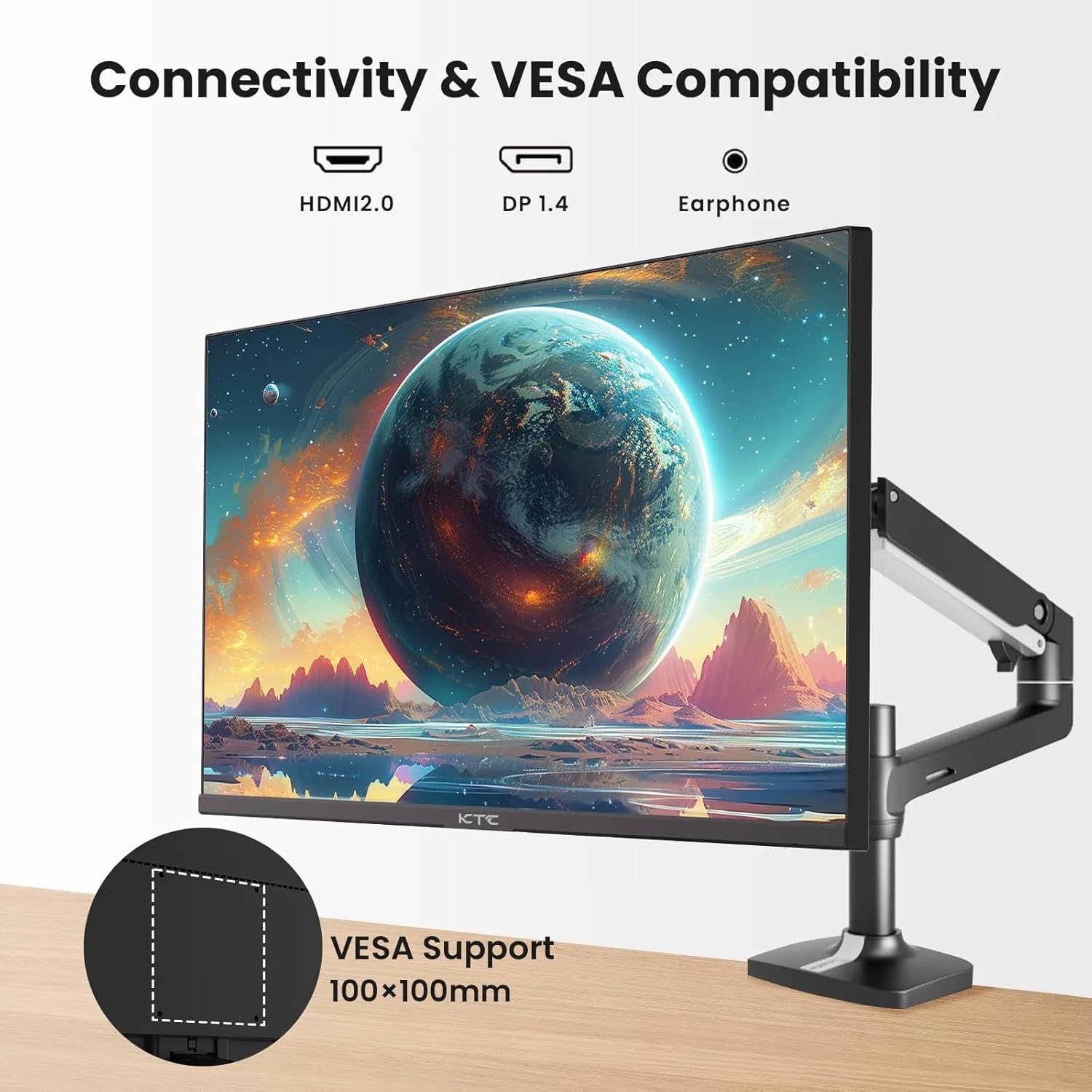
Figure 2: VESA Compatibility and Connectivity Ports
4. Girêdana Cables
Connect the necessary cables to the monitor and your computer or other devices. Ensure all connections are secure.
- Cable Power: Connect the power adapter to the monitor's DC input port, then plug the power cable into a power outlet.
- Kabloya Vîdyoyê: Connect either an HDMI cable (HDMI 2.0) or a DisplayPort cable (DP 1.4) from your computer's graphics card to the corresponding input port on the monitor.
- Derketina Deng: If desired, connect headphones or external speakers to the 3.5mm audio output jack.

Figure 3: Monitor Input Ports
5. Vekirina Destpêkê
Press the power button on the monitor. The power indicator light will illuminate. If no image appears, ensure your computer is powered on and the correct input source is selected on the monitor.
Operating
1. Power On / Off
Press the power button located on the monitor to turn it on or off. The power indicator will show the monitor's status.
2. Pêşeka Nîşandana Ser-Screen (OSD).
The OSD menu allows you to adjust various monitor settings. Use the control buttons (usually located on the back or bottom of the monitor) to navigate the menu.
- Ji bo çalakkirina menuyê OSD bişkojekê bikirtînin.
- Ji bo ku hûn di nav vebijarkên menuyê de bigerin, bişkokên navîgasyonê bikar bînin.
- Press a selection button to enter a sub-menu or confirm a setting.
- Press an exit button to close the OSD menu.
3. Eyarkirina Mîhengan
Mîhengên guhêrbar ên hevpar ev in:
- Ronahî/Berevajî: Ronahîya giştî û cudahiya di navbera deverên ronahî û tarî de eyar bike.
- Mîhengên Rengê: Germahiya reng, gama, û nirxên RGB yên takekesî biguherîne.
- Çavkaniya Ketinê: Manually select between HDMI 1, HDMI 2, or DisplayPort inputs.
- Moda Wêne: Select predefined display modes (e.g., Standard, Game, Movie).
4. Rêjeya Refresh
The KTC H27T27 supports a 100Hz refresh rate, providing smoother motion compared to standard 60Hz displays. Ensure your graphics card and operating system are configured to output at 100Hz for the best experience.

Figure 4: 100Hz Refresh Rate Benefit
5. FreeSync Technology
This monitor is compatible with AMD FreeSync technology, which synchronizes the monitor's refresh rate with your graphics card's frame rate. This helps eliminate screen tearing and stuttering for a smoother gaming and video experience. Ensure FreeSync is enabled in both the monitor's OSD menu and your graphics card's control panel.
Figure 5: FreeSync Technology in Action
Lênerrînî
1. Paqijkirina Ekranê
- Monitorê vemirînin û têleya elektrîkê jê derxin.
- Bi hûrgulî dîmenderê bi qumaşek nerm û bê perz paqij bikin.
- Ji bo nîşanên serhişk, bi sivikî dampqumaşê bi av an jî paqijkerek taybetî ya ekranê bişon (rasterast li ser ekranê nepişkînin).
- Ji bikaranîna paqijkerên aşındêr, alkol, an çareseriyên li ser bingeha amonyakê dûr bisekinin, ji ber ku ev dikarin zirarê bidin rûyê ekranê.
2. Lênêrîna Giştî
- Keep the monitor away from direct sunlight, excessive heat, and humidity.
- Ji bo rêgirtina li germbûna zêde, li dora monîtorê hewakirina têr peyda bikin.
- Ji danîna tiştên giran li ser monîtorê an kabloyên wê dûr bisekinin.
Çareserkirina pirsgirêkan
Heke hûn bi çavdêriya xwe re rastî pirsgirêkan werin, li pirsgirêk û çareseriyên hevpar ên jêrîn binêrin:
- Hêz tune:
- Ensure the power cable is securely connected to both the monitor and the power outlet.
- Piştrast bikin ku priza elektrîkê dixebite. - Nîşanek tune:
- Check that the video cable (HDMI or DisplayPort) is securely connected to both the monitor and your computer.
- Ensure your computer is powered on and not in sleep mode.
- Select the correct input source via the monitor's OSD menu. - Wêneyê lerizî an jî tahrîfkirî:
- Check the video cable for damage or loose connections.
- Adjust the refresh rate settings on your computer.
- Disable or enable FreeSync in the OSD menu and graphics card settings to test. - Rengên şaş:
- Reset color settings to factory defaults in the OSD menu.
- Adjust color temperature or individual RGB values.
Eger piştî van çareseriyan pirsgirêk berdewam bike, ji kerema xwe bi piştgiriya xerîdar re têkilî daynin.
Specifications
| Taybetî | Specification |
|---|---|
| Nîşan | KTC |
| Hejmara Model | H27T27 |
| Mezinahiya Screen | 27 inches |
| Resolution | 2560 x 1440 (WQHD) |
| Refresh Rate | 100 Hz |
| Type Display | IPS |
| Dema bersivê | 7 Mîlysekonda |
| Syncê Adaptive | FreeSync |
| Têkilî | 2x HDMI 2.0, 1x DisplayPort 1.4, 1x Derketina Dengî ya 3.5mm |
| Aspect Ratio | 1.78:1 |
| Rûyê Ekranê | Matte |
| Mezinahiya Babetê (D x W x H) | 1.85"D x 24.25"W x 14.33"B |
| Babetê Weight | 4 Kîlo |
Garantî û Piştgirî
Agahî Garantî
This KTC monitor is covered by a manufacturer's warranty. Please refer to the warranty card included in your product packaging for specific terms, conditions, and duration of coverage. Keep your purchase receipt as proof of purchase for warranty claims.
Piştgiriya Mişterî
For technical assistance, warranty service, or any product-related inquiries, please contact KTC customer support. Contact details can typically be found on the official KTC webmalper an li ser karta garantiyê.
When contacting support, please have your monitor's model number (H27T27) and serial number ready.