
Pêşkêş
Thank you for choosing the OMOTON Wireless Bluetooth Keyboard. This ultra-slim keyboard is designed for seamless compatibility with various Mac devices, offering a stable and efficient typing experience. This manual provides detailed instructions for setup, operation, maintenance, and troubleshooting to ensure optimal performance of your device.

OMOTON Wireless Keyboard compatible with various Mac devices including iMac, Mac mini, and MacBook Pro/Air. System requirement: Mac OS X 10.10 or above.
Damezirandin
1. Sazkirina Pîl
The OMOTON Wireless Bluetooth Keyboard requires two AAA batteries (not included). Follow these steps to install them:
- Locate the battery compartment on the back of the keyboard.
- Slide berga pîlê vekin.
- Du bataryayên AAA têxinê, û piştrast bin ku polarîteya wan rast e (+/-).
- Qapaxa pîlê bi ewlehî bigire.
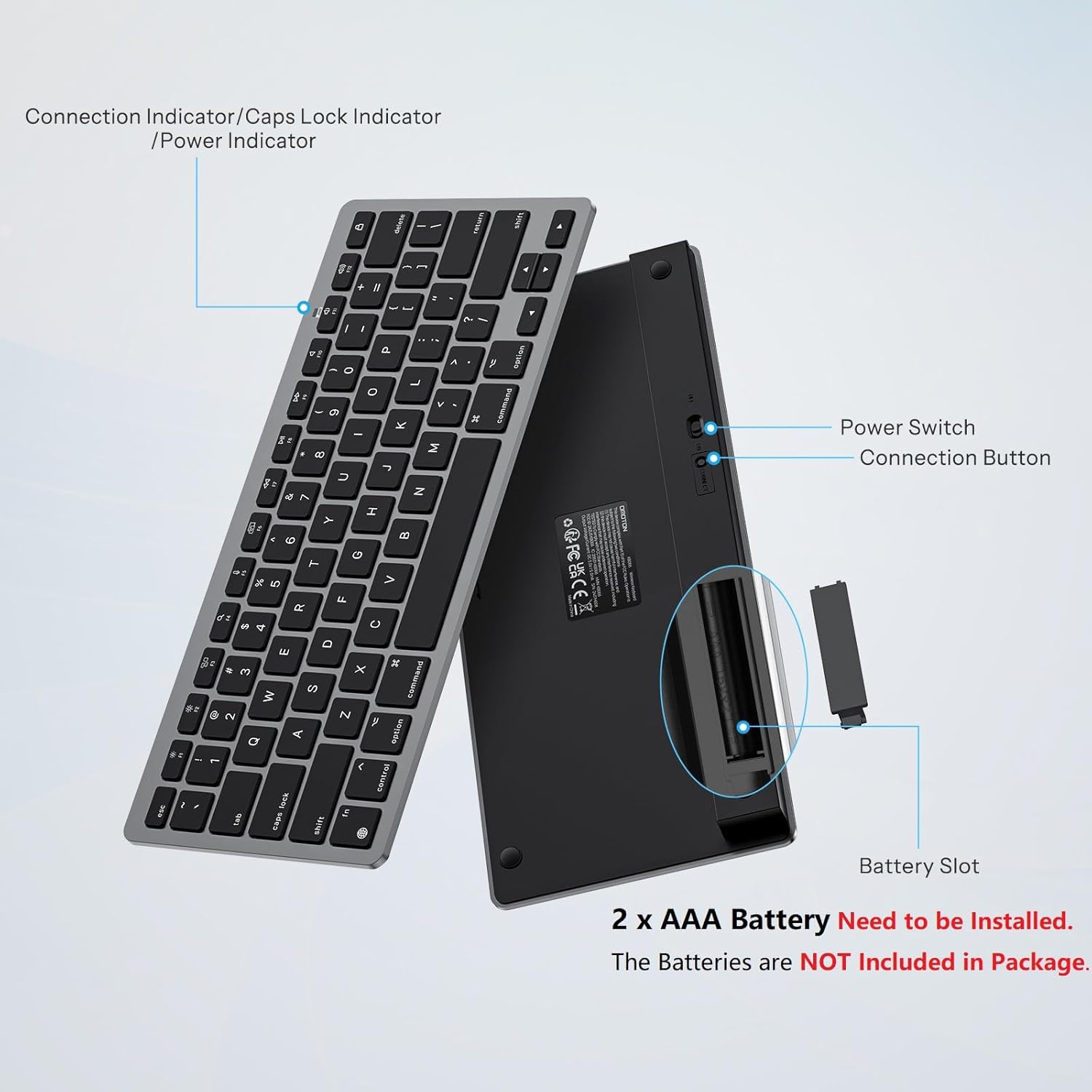
Mezinkirin view of the OMOTON Wireless Keyboard showing the power switch, connection button, and battery slot for two AAA batteries.
2. Hevgirtina Bluetooth
To connect your keyboard to your Mac device, follow these steps:
- Ensure the keyboard has fresh batteries installed.
- Locate the power switch on the back of the keyboard and slide it to the "ON" position.
- Press the "Connect" button on the back of the keyboard. The Bluetooth indicator light on the keyboard will begin to flash, indicating it is in pairing mode.
- On your Mac device, go to Mîhengên Sîstemê (an Preferences System) > Bluetooth.
- Piştrast bike ku Bluetooth vekirî ye.
- Look for "KB066 Mac Keyboard" (or similar) in the list of available devices and click "Connect" or "Pair".
- Once connected, the Bluetooth indicator light on the keyboard will stop flashing.

Step-by-step visual guide for connecting the OMOTON Wireless Keyboard via Bluetooth to a Mac device.
The keyboard maintains a stable Bluetooth connection range of up to 33 feet (10 meters).
Telîmatên Operating
Nivîsandina bingehîn
The keyboard features a standard QWERTY layout. The keys are designed for a quick and responsive typing experience.

Close-up of a key on the OMOTON Wireless Keyboard, illustrating the scissor-switch mechanism for quick and quiet typing.
Bişkokên Multimedia
The top row of keys (F1-F12) provides dedicated multimedia and function controls for Mac devices. These include:
- F1/F2: Eyarkirina ronahiyê
- F3: Mission Control
- F4: Gerr
- F5: Çap
- F6: Screenshot
- F7/F8/F9: Rêça Berê, Lîstik / Raweste, Rêça Pêşî
- F10/F11/F12: Bêdengkirin, Volume Down, Volume Up
- Eject Key: Lock Screen

Layout of the OMOTON Wireless Keyboard highlighting the dedicated multimedia function keys for Mac.
Design Ergonomic
The keyboard features an 8-degree tilt angle, designed to promote a comfortable typing posture and reduce strain during extended use. Four rubber feet on the bottom provide slip resistance for stability.

Hêl view of the OMOTON Wireless Keyboard demonstrating its 8-degree ergonomic tilt for comfortable typing.
Lênerrînî
Paqijî
Ji bo parastina xuyang û fonksiyona klavyeyê:
- Use a soft, lint-free cloth to wipe the surface.
- Ji bo qirêjiya serhişk, hinekî dampQumaşê bi av an jî bi çareseriyeke paqijkirinê ya nerm bişon. Ji şilbûna zêde dûr bisekinin.
- Do not use abrasive cleaners, solvents, or aerosol sprays directly on the keyboard.
Guhertina Pîl
When the keyboard's performance degrades or it fails to connect, it may be time to replace the batteries. Refer to the "Battery Installation" section for instructions on replacing the two AAA batteries. The energy-saving design and auto-sleep mode allow for a battery replacement interval of up to 6 months under typical usage.
Çareserkirina pirsgirêkan
- Keyboard not connecting or frequently disconnecting:
- Ensure the keyboard is powered on and has fresh batteries.
- Verify that Bluetooth is enabled on your Mac device.
- Move the keyboard closer to your Mac to ensure it's within the 33-foot (10-meter) range.
- Try unpairing and re-pairing the keyboard through your Mac's Bluetooth settings. - Bişkok bersivê nadin:
- Check battery levels and replace if necessary.
- Ensure the keyboard is properly connected via Bluetooth.
- If the keyboard has been idle, it may be in auto-sleep mode. Press any key and wait 2-3 seconds for it to wake up. - Lag or delayed input:
- This could be due to interference. Try moving other wireless devices away from your keyboard and Mac.
- Ensure your Mac's operating system is up to date.
Specifications
| Taybetî | Hûrî |
|---|---|
| Nîşan | OMOTON |
| Cins | B0DLMXVTHM |
| Amûrên Lihevhatî | Mac/iMac/Macbook/Laptop etc. (macOS 10.10 and later) |
| Teknolojiya Girêdanê | Bluetooth |
| Danasîna Klavyeyê | Multimedia, Wireless |
| Bikaranîna Pêşniyar kirin | Dayre |
| Taybetmendiya Taybet | Ergonomîk, Portable |
| Reng | Gewrê Reş |
| Mal | Pîlastîk |
| Çavkaniya Hêzê | Bi pîlê dixebite (2 x AAA, ne tê de ye) |
| Layout Klavyeyê | QWERTY |
| Babetê Weight | 11.7 onsan |
| Mezinahiyên pakêtê | 11.38 x 5 x 0.94 inches |

Dimensions of the OMOTON Wireless Keyboard (11.22 x 4.72 inches) shown in comparison to a MacBook and a smartphone.
Garantî û Piştgirî
OMOTON products are designed for reliability and performance. For specific warranty details, please refer to the warranty card included with your product packaging or visit the official OMOTON website. For technical support or further assistance, please contact OMOTON customer service through their official channels.