
1. Destpêk
Thank you for choosing the GreenLaw iPad Keyboard Case. This manual provides comprehensive instructions for setting up, operating, and maintaining your new keyboard case. Designed for seamless integration with your iPad, it enhances productivity and offers a comfortable typing experience.
1.1 Lihevhatî
This keyboard case is specifically designed for the iPad 11th Generation (A16) 2025 û iPad 10th Generation 2022 (Models: A2696/A2777/A2757). Ev e ne lihevhatî with 10.9-inch iPad Air 5th and 4th Generation models. Please verify your iPad model number on the back of your device to ensure compatibility before use.

Image: GreenLaw iPad Keyboard Case with iPad attached, showcasing its sleek design and integrated keyboard.

Image: A visual guide illustrating compatible iPad models (iPad 11th Gen A16, iPad 10th Gen 2022) and incompatible models (iPad Air 4th/5th Gen, iPad 11-inch M2/M3).
2. Taybetmendiyên Berhemê li serview
The GreenLaw iPad Keyboard Case is engineered with several advanced features to enhance your iPad experience:
- Quick-Set Magnetic Stand: Features a strong magnetic matrix (31 magnets, up to 2600GS holding power) for secure attachment and easy adjustment of the floating cantilever stand to the perfect typing or browsing angle.
- Rûyê Berxwedêr ê Lekeyan: Utilizes GreenLaw SemiSi-tech fused with PU leather, allowing for easy wiping of surface stains. Offers a soft, sweat-resistant touch with a plush lining to protect your iPad from scratches.
- Têkiliya Bluetooth 5.2: Provides low-power, stable wireless connection. Simply pair once for automatic reconnection in daily use.
- Scissor-type Switches: Each key offers a comfortable 1-millimeter key travel for effortless and responsive typing.
- Vibrant Backlight Customization: Choose from 7 vivid colors across 3 brightness levels to personalize your typing environment.
- Intuitive Multi-Touch Trackpad: Supports multi-touch gestures for effortless navigation, including swiping to return to the main screen or switch between open applications.
- Rêveberiya Hêza Smart: Includes a one-touch wake-up function, USB-C charging, and smart sleep mode for efficient battery usage.

Wêne: Bi hûrgilî view highlighting the skin-friendly surface, responsive multi-touch trackpad, and durable scissor-style keys of the keyboard case.

Image: The keyboard illuminated with vibrant 7-color backlighting, demonstrating adjustable brightness for enhanced visibility in various lighting conditions.

Image: A hand demonstrating the use of the multi-touch trackpad, emphasizing its precision and support for intuitive gestures for seamless iPad navigation.
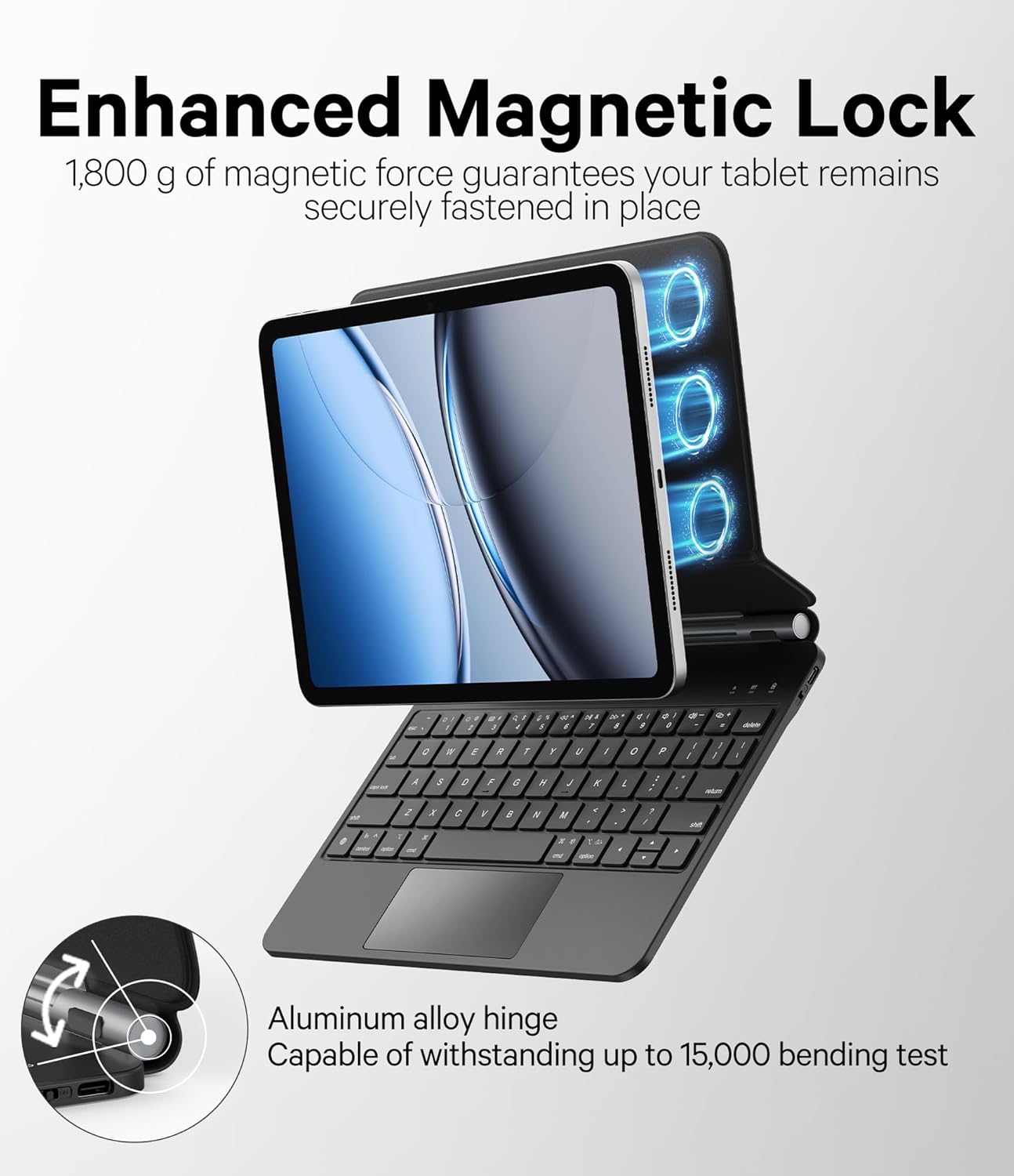
Image: The iPad securely attached to the Magic-Style Magnetic Floating stand, illustrating its ultra-wide 135-degree viewing angle ji bo rehetiya herî baş.

Image: A diagram illustrating the enhanced magnetic lock, highlighting the 1,800g magnetic force and aluminum alloy hinge capable of withstanding up to 15,000 bending tests.

Wêne: Nêzîkbûn view of the stain-resistant surface, demonstrating how easily it can be wiped clean without leaving residue, thanks to GreenLaw SKIN-Semi-Si-Tech.
3. Guide Setup
3.1 Vekirina Qutî û Naveroka Pakêtê
Upon opening your GreenLaw iPad Keyboard Case package, you should find the following items:
- GreenLaw iPad Keyboard Case
- Kabloya barkirinê ya USB-C
- Manual Bikarhêner (ev belge)
3.2 Girêdana iPad-a we
The keyboard case features a powerful magnetic design for secure attachment:
- Open the keyboard case to its full extent.
- Align your iPad with the magnetic back panel of the case. The strong magnets will automatically snap your iPad into place, ensuring a secure fit.
- Adjust the floating cantilever stand to your desired viewAngle.
Video: Demonstrates the unboxing, magnetic attachment, and initial setup of the GreenLaw iPad Keyboard Case, highlighting its ease of use and secure fit.
3.3 Pairkirina Bluetooth
To connect your keyboard case to your iPad via Bluetooth:
- Ensure the keyboard is turned on and fully charged (refer to Section 4.4 for charging instructions).
- Turn on the keyboard by pressing the power button (usually located on the side or top edge of the keyboard). The indicator light should blink, indicating it's in pairing mode.
- Li ser iPad-a xwe, biçin Settings > Bluetooth.
- Turn on Bluetooth. Your iPad will search for nearby devices.
- Select "GreenLaw Keyboard" (or similar name) from the list of available devices.
- Once connected, the indicator light on the keyboard will stop blinking and remain solid, and your iPad will show the keyboard as "Connected."
- The keyboard will automatically reconnect to your iPad in the future when both devices are on and Bluetooth is enabled.
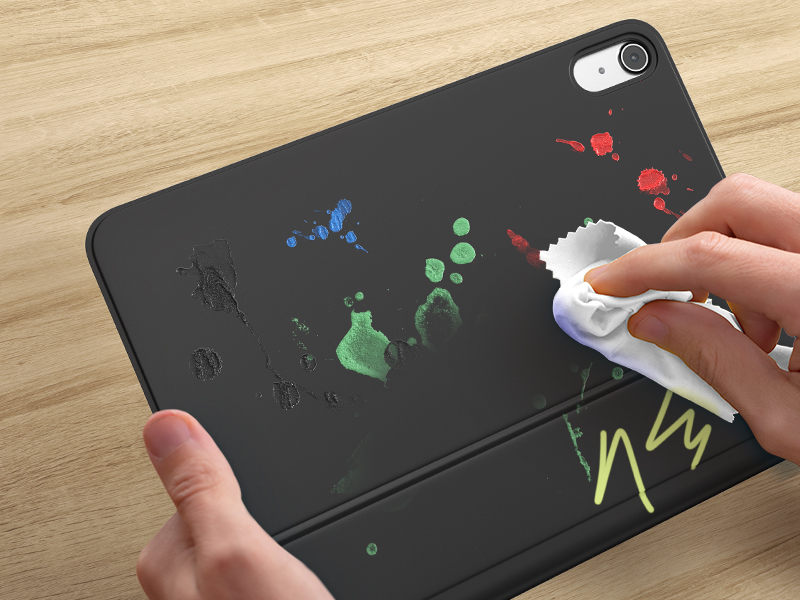
Image: A close-up of the keyboard highlighting the Bluetooth 5.2 chip, indicating stable and low-power wireless connectivity for seamless pairing with your iPad.
4. Telîmatên Operating
4.1 Eyarkirina Viewing Angle
The floating cantilever stand allows for flexible viewangles:
- Gently push or pull the iPad screen to adjust the angle of the stand.
- The stand supports a wide range of angles, allowing you to find the most comfortable position for typing, drawing, or viewnaveroka.
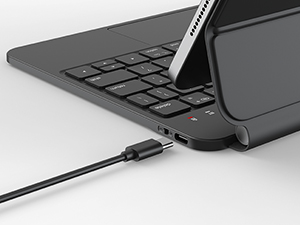
Image: An animated demonstration of the keyboard case's ability to adjust the iPad's viewing angle up to 135 degrees, providing versatile positioning for various tasks.
4.2 Bikaranîna Klavyeyê
The keyboard features responsive scissor-type switches for a comfortable and efficient typing experience:
- Each key provides a comfortable 1-millimeter key travel, ensuring a satisfying tactile response.
- The layout is designed for familiarity, allowing for effortless productivity.
Wêne: Berfireh view of the keyboard's internal structure, revealing the scissor-type switch mechanism that ensures quick key rebound and comfortable typing.
4.3 Using the Multi-Touch Trackpad
The intuitive trackpad supports various multi-touch gestures for enhanced navigation:
- Lepika yek tiliyê: Bikirtînin/hilbijêrin.
- Geroka du tiliyan: Ber bi jor/jêr an jî çep/rast bizivire.
- Sê-tilî kişandina jor: Return to the main screen (Home).
- Bi sê tiliyan çep/rast bihejînin: Di navbera sepanên vekirî de biguhere.
- Refer to your iPad's settings for a complete list of supported gestures.
4.4 Backlight Customization
Personalize your typing experience with the adjustable backlight:
- Bitikîne Dûr bûn key (often combined with the Function key) to cycle through 7 vibrant colors.
- Bi kar tînin Ronahî Ser / Down keys (often combined with the Function key) to adjust between 3 brightness levels.
5. Maintenance
5.1 Paqijkirina Rûyê
The keyboard case features a stain-resistant surface for easy cleaning:
- For most surface stains, simply wipe with a soft, damp çît.
- Avoid using harsh chemicals or abrasive cleaners, as these may damage the material.
Image: A hand demonstrating the ease of cleaning the stain-resistant surface of the keyboard case, showing how spills and marks can be effortlessly wiped away.
5.2 Barkirina Klavyeyê
The keyboard is powered by a built-in rechargeable battery:
- Connect the provided USB-C charging cable to the charging port on the keyboard.
- Serê din ê kabloyê bi adaptora hêzê ya USB (ne di nav de ye) an jî bi porta USB ya komputerê ve girêdin.
- An indicator light will typically show the charging status (e.g., red for charging, green/off for fully charged).
- The keyboard features smart battery management and smart sleep mode to optimize power usage.

Wêne: Nêzîkbûn view of the keyboard's USB-C charging port, illustrating where to connect the charging cable for power replenishment.
6. Destpêkirin
If you encounter any issues with your GreenLaw iPad Keyboard Case, please refer to the following common solutions:
- Klavyeyê bi rêya Bluetooth ve girêdayî nabe:
- Piştrast bike ku klavyeyê vekiriye û bi tevahî şarj kiriye.
- Turn off and on Bluetooth on your iPad.
- Forget the device in iPad's Bluetooth settings and re-pair.
- Hem iPad-a xwe û hem jî klavyeyê ji nû ve bidin destpêkirin.
- Trackpad bersivê nade:
- Piştrast bike ku klavyeyê bi rêya Bluetooth ve girêdayî ye.
- Check iPad settings to ensure trackpad support is enabled.
- Rûyê trackpadê paqij bike.
- Ronahiya paşîn nexebite an jî tarî ye:
- Piştrast bike ku klavyeyê tê şarj kirin.
- Press the backlight key to cycle through colors and brightness levels.
- Bişkok bersivê nadin:
- Ensure the keyboard is connected and charged.
- Try restarting the keyboard and iPad.
7. Specifications
| Taybetî | Hûrî |
|---|---|
| Mezinahiya Hilberê | 10.63 x 7.87 x 1.06 inches |
| Babetê Weight | 2.03 lîre |
| Çêker | GreenLaw |
| Amûrên Lihevhatî | iPad 2022 10th Generation, iPad 2025 11th Generation(A16) |
| Teknolojiya Girêdanê | Bluetooth 5.2 |
| Danasîna Klavyeyê | Pir Fonksiyonel |
| Hejmara Keys | 78 |
| Mal | Çerm |
| Batteries | 1 bataryayên Lithium Polymer (tevî) |
8. Garantî û Piştgirî
GreenLaw products are designed for durability and performance. For any warranty claims, technical support, or inquiries, please contact GreenLaw customer service through the retailer where you purchased the product or visit the official GreenLaw website.
Ji kerema xwe delîla kirînê ji bo armancên garantiyê biparêzin.
Ji bo bêtir agahdarî, biçin GreenLaw Store on Amazon.