
Star Micronics MCL32CBI
Star Micronics mC-Label3 MCL32CBI Direct Thermal Printer User Manual
Model: MCL32CBI
Pêşkêş
This manual provides essential information for the setup, operation, maintenance, and troubleshooting of your Star Micronics mC-Label3 MCL32CBI Direct Thermal Printer. Please read this manual thoroughly before using the printer to ensure proper and safe operation.
Naveroka pakêtê
Piştrast bike ku hemû tiştên ku li jêr hatine navnîş kirin di pakêta te de hene:
- mC-Label3 Multifunctional Printer
- AC Adapter
- Cable Power
- USB Cables (C-C 1.0m and C-A 1.8m)
- Kabloya LAN (1 m)
- Simple Setup Sheet Safety Guide

Wêne: Pêşî view of the Star Micronics mC-Label3 printer, showcasing its compact design and label output slot.
Damezirandin
1. Girêdana Çapkerê
The mC-Label3 MCL32CBI printer offers multiple connectivity options:
- USB-C: Connect the printer directly to your PC, Android, or iOS device using the provided USB-C to USB-C or USB-C to USB-A cables.
- Ethernet (LAN): For network connectivity, connect the printer to your router or network switch using the supplied LAN cable.
- Bluetooth: The MCL32CBI model supports Bluetooth connectivity for iOS and Android devices. Ensure Bluetooth is enabled on your device and pair with the printer.

Wêne: Paş view of the mC-Label3 printer, highlighting the LAN, USB, and power ports for various connection types.
2. Barkirina Medyayê
The printer supports various media types, including linerless labels, die-cut labels, continuous labels, and thermal receipt paper.
- Open the top cover of the printer by lifting the latch.
- Place the media roll into the media compartment, ensuring the leading edge feeds out from the top.
- Pull a small amount of media past the print head and close the top cover securely.
- Ensure the media is properly aligned within the guides.

Wêne: Ji jor ber bi jêr ve view of the mC-Label3 printer with its cover open, illustrating the internal mechanism for loading thermal paper or label rolls.
Telîmatên Operating
1. Hêzdarkirina / Off
Connect the power cable to the printer and a power outlet. Press the power button located on the front of the printer to turn it on. The status indicator light will illuminate.
2. Printing Labels and Receipts
The mC-Label3 MCL32CBI printer is designed for efficient label and receipt printing. It supports various applications and cloud services.
- Lihevhatina nermalavê: Works seamlessly with PC, Android, and iOS applications.
- Xizmetên Cloud: Utilize Star Micronics Cloud Services to design and manage labels.
- One Touch Label: This feature allows storing pre-made receipts and labels for quick and easy printing directly from the printer.
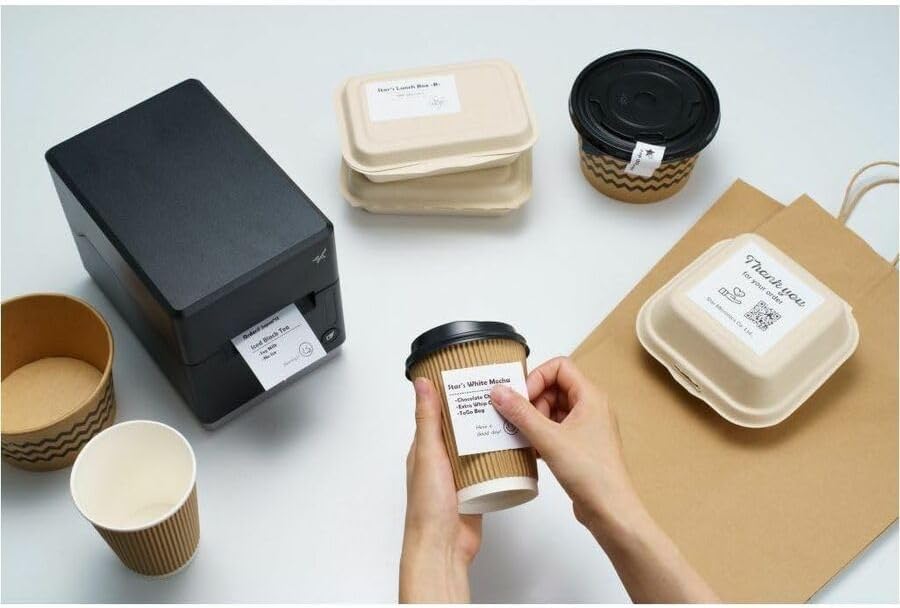
Image: A hand pressing the feed button on the mC-Label3 printer, demonstrating the printing of a 'Thank you' label.

Image: The mC-Label3 printer shown in a practical setting, printing labels for food containers and coffee cups, illustrating its versatility.
Lênerrînî
1. Paqijkirina Çapkerê
Regular cleaning ensures optimal performance and extends the life of your printer.
- Qumaşê nerm û bê pîs bikar bînin dampened with isopropyl alcohol to clean the print head.
- Wipe down the exterior of the printer with a soft, dry cloth.
- Ji karanîna paqijkerên abrasive an solvanan dûr bixin.
2. Replacing Media
When the media roll is depleted, follow the media loading instructions in the Setup section to replace it.
3. Effortless Repairs
The mC-Label3 is designed for effortless, no-tools-required repairs with minimal upkeep, simplifying any necessary component replacements.
Çareserkirina pirsgirêkan
Ev beş çareseriyên pirsgirêkên hevpar ên ku hûn dikarin pê re rû bi rû bimînin peyda dike.
| Pirsegirêk | Sedema gengaz | Çare |
|---|---|---|
| Çapker vênake | Kabloya elektrîkê ne girêdayî ye; Pirsgirêka priza elektrîkê | Ensure power cable is securely connected; Try a different power outlet. |
| Derana çapkirinê tune | Out of media; Media loaded incorrectly; Driver issue | Load new media; Re-load media correctly; Reinstall printer drivers. |
| Qalîteya çapê ya xirab | Dirty print head; Low quality media | Clean the print head; Use recommended thermal media. |
| Pirsgirêkên girêdanê | Incorrect cable connection; Bluetooth not paired; Network configuration | Check USB/Ethernet cables; Re-pair Bluetooth; Verify network settings. |
Specifications
| Taybetî | Hûrî |
|---|---|
| Navê Model | mC-Label3 |
| Hejmara Modela Babetê | MCL32CBI |
| Teknolojiya Çapkirinê | Direct Termal |
| Derketina çapkirinê | Monochrome |
| Max Leza Print Monochrome | 23 ppm |
| Çareseriya Çapkirina Reş û Spî ya herî zêde | 203 DPI (203 x 203 DPI) |
| Çap Media | Labels (Linerless, Die-Cut, Continuous), Thermal Receipt |
| Teknolojiya Girêdanê | Bluetooth, Wired (USB, Ethernet) |
| Navrûya Alavê | USB-Ethernet |
| Amûrên Lihevhatî | PC, Android, iOS |
| Type Controller | iOS, Android |
| Mezinahiya Hilberê | 6.7"K x 5.6"Fi x 8.3"Bilindahî (17.0 x 14.2 x 21.1 cm) |
| Babetê Weight | 7.2 pound (3.27 kg) |
| Kapasîteya Storage Memory | 64 MB |
| Reng | Reş |
| Çêker | STAR MICRONICS |
| Welatê Origin | çîn |
Agahî Garantî
The Star Micronics mC-Label3 MCL32CBI printer comes with a manufacturer's warranty. For specific terms and conditions, please refer to the warranty card included in your package or visit the official Star Micronics website.
Cureyê Garantî: Çêker
Alîkarî
For further assistance, technical support, or to download the latest drivers and firmware, please visit the official Star Micronics support webmalperê an bi karûbarê xerîdar a wan re têkilî daynin.
Star Micronics Official Webmalper: www.starmicronics.com
Lînka Piştgiriyê: www.starmicronics.com/support
Ask a question about this manual
Ask about setup, troubleshooting, compatibility, parts, safety, or missing instructions. Manuals+ will review the question and use this page’s manual context to help answer it.