
1. Destpêk
The Intelbras GX 3000 is a multifunction wireless mesh router designed to provide high-speed internet connectivity via 5G/4G networks and Wi-Fi 6. This device integrates advanced Qualcomm technology for both its 5G modem and Wi-Fi 6 solution, ensuring high performance and reliability. It supports up to 128 devices simultaneously on the Wi-Fi network and offers wired connectivity options. The GX 3000 is suitable for various environments, from home to office, providing robust network performance.
This manual provides instructions for setting up, operating, and maintaining your Intelbras GX 3000 router. Please read it carefully before use.
2. Package Contents & Device Overview
2.1. Naveroka pakêtê
- Intelbras GX 3000 Wireless Mesh Router
- Power Adapter
- Cable Network
- Rêbernameya Destpêkirina Bilez (di vê rêbernameyê de tune ye)
2.2. Device Serview
Wêne 1: Pêşî View of the GX 3000 Router
This image displays the front of the Intelbras GX 3000 router, showing its sleek white design and LED indicators for 5G, 4G, call status, Wi-Fi, and WPS button.

Figure 2: GX 3000 Router with Highlighted Indicators and Ports
This image provides a closer look at the router, emphasizing the LED indicators on the front (5G, 4G, Call, Wi-Fi, WPS) and the various ports located on the rear panel, including LAN, WAN, and TEL ports.
2.2.1. Portên Panela Paşîn

Figure 3: Rear Panel of the GX 3000 Router
This image shows the rear panel of the router, clearly displaying the LAN, WAN, and TEL ports for wired connections.
- Portên LAN: For connecting wired devices such as computers, smart TVs, or gaming consoles.
- Porta WAN: For connecting to an external modem or internet source (if not using 5G/4G).
- TEL Port: For voice services (if supported by your service provider).
- Ketina Hêzê: Bi adaptora hêzê ya ku tê de ve girêdayî ye.
2.2.2. Bottom Panel Features

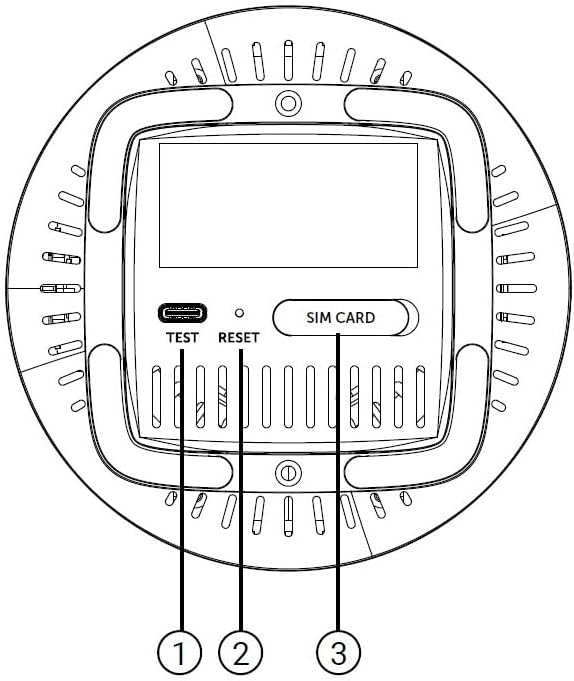
Figure 4: Bottom Panel Features of the GX 3000 Router
This diagram illustrates the bottom panel of the router, highlighting the TEST port, RESET button, and SIM CARD slot.
- TEST Port: For diagnostic purposes.
- Bişkojka RESET: Used to restore factory default settings. Press and hold for 10 seconds while the device is powered on.
- SIM CARD Slot: Insert your 5G/4G SIM card here for mobile broadband connectivity.
3. Sazkirin
3.1. Cihgirtina Destpêkê
Place the router in a central location within your desired coverage area, away from obstructions, metal objects, and other electronic devices that may cause interference. Ensure good ventilation around the device.
3.2. Danîna SIM Kartê
- Piştrast bikin ku router vekêşandî ye.
- Locate the SIM CARD slot on the bottom panel of the router (refer to Figure 4).
- Insert your activated 5G/4G SIM card into the slot with the gold contacts facing down and the notched corner oriented correctly. Push until it clicks into place.
- To remove, gently push the SIM card in again until it springs out.
3.3. Girêdana Hêza
- Connect one end of the power adapter to the Power Input port on the rear of the router.
- Serê din ê adaptora hêzê bi prizek elektrîkê ya standard ve girêdin.
- The router will power on automatically. Wait for the LED indicators to stabilize.
3.4. Wired Connections (Optional)
If you wish to connect devices via Ethernet:
- Connect one end of the provided network cable to a LAN port on the rear of the router.
- Connect the other end of the network cable to the Ethernet port of your computer, smart TV, or other wired device.
3.5. Initial Wi-Fi Connection
The default Wi-Fi network name (SSID) and password are usually printed on a label on the bottom of the router. Follow these steps to connect:
- On your wireless device (smartphone, laptop, tablet), open the Wi-Fi settings.
- Scan for available networks and select the SSID corresponding to your GX 3000 router.
- Enter the default Wi-Fi password when prompted.
- Once connected, you can access the router's web interface to customize settings.
4. Telîmatên Operating
4.1. Indicators LED
LED-ên panela pêşiyê agahdariya rewşê peyda dikin:
- 5G LED: Rewşa tora 5G nîşan dide.
- 4G LED: Rewşa tora 4G nîşan dide.
- Call LED: Indicates voice service status.
- Wi-Fi LED: Indicates Wi-Fi network activity.
- WPS LED: Rewşa fonksiyona WPS nîşan dide.
Refer to the full user manual (if provided separately) for detailed LED behavior (e.g., solid, blinking, color) and their meanings.
4.2. Gihîştina Web Navrûya Birêvebirinê
To configure advanced settings, manage your network, or change Wi-Fi credentials, access the router's web interface:
- Ensure your device is connected to the GX 3000's Wi-Fi network or via an Ethernet cable.
- Vekirin a web geroka gerokê (mînak, Chrome, Firefox, Edge).
- In the address bar, type the default IP address of the router (commonly
192.168.1.1or192.168.0.1) and press Enter. This information is usually on the label on the bottom of the router. - Enter the default username and password (also found on the router label).
- You will now be in the router's management interface, where you can customize settings such as Wi-Fi name, password, security protocols, and more.
4.3. Wi-Fi Protected Setup (WPS)
WPS allows you to connect Wi-Fi devices without entering the password manually:
- Press the WPS button on the front of the GX 3000 router (refer to Figure 1). The WPS LED will start blinking.
- Within two minutes, press the WPS button on your client device (e.g., Wi-Fi adapter, printer).
- Amûr dê bixweber ve girêdayî bibin.
Note: WPS is a convenient feature but may be less secure than manual password entry.
4.4. Mesh Network Expansion
The GX 3000 supports mesh networking to expand Wi-Fi coverage. You can add other compatible Intelbras Qi5 line products to create a seamless mesh network. Each additional Wi-Fi 6 router can extend coverage by up to 300 m². It is recommended to use up to 6 routers in the same mesh network for optimal performance.
Refer to the specific instructions provided with additional mesh units for pairing and configuration.
5. Maintenance
5.1. Paqijkirina Device
- Ensure the router is powered off and unplugged before cleaning.
- Ji bo paqijkirina derveyê cîhazê, qumaşek nerm û hişk bikar bînin.
- Do not use liquid cleaners, aerosols, or solvents, as they may damage the casing an pêkhateyên navxweyî.
- Deriyên hewakirinê ji toz û bermayiyan paqij bihêlin.
5.2. Nûvekirinên Firmware
Periodically check the Intelbras official webmalper ji bo nûvekirinên firmware. Nûvekirinên firmware dikarin performansê baştir bikin, taybetmendiyên nû lê zêde bikin û ewlehiyê zêde bikin. Talîmatên ku bi pakêta nûvekirina firmware re hatine dayîn bi baldarî bişopînin.
5.3. Vegerandina Mîhengên Kargehê
If you encounter persistent issues or forget your login credentials, you can reset the router to its factory default settings:
- With the router powered on, locate the RESET button on the bottom panel (refer to Figure 4).
- Using a paperclip or a similar pointed object, press and hold the RESET button for approximately 10 seconds.
- Release the button. The router will restart with all settings restored to their original factory defaults.
- You will need to reconfigure your Wi-Fi settings and any other custom configurations after a factory reset.
6. Destpêkirin
| Pirsegirêk | Sedema gengaz | Çare |
|---|---|---|
| No power / Router not turning on | Power adapter not connected or faulty; Power outlet not working. |
|
| No internet connection (5G/4G) | SIM card not inserted correctly; SIM card not activated; No 5G/4G signal; Service provider issue. |
|
| Nikare bi Wi-Fi ve were girêdan | Incorrect Wi-Fi password; Wi-Fi disabled; Device too far from router. |
|
| Leza înternetê ya hêdî | Network congestion; Poor signal strength; Interference; Outdated firmware. |
|
| Ji bîr kir web şîfreya navberê | Password forgotten or changed. |
|
7. Specifications
| Taybetî | Hûrî |
|---|---|
| Nîşan | Intelbras |
| Cins | GX 3000 |
| Teknolojiya Girêdanê | 5G, 4G, Wi-Fi 6 (802.11a/b/g/n/ac/ax) |
| Frequency Band Class | Dual-Band |
| Standarda Têkiliya Wireless | 802.11a |
| Rêjeya Veguheztina Daneyên | Heta 900 Megabit di çirkeyê de |
| Firehiya Porta LAN | 1000 Mbps (Gigabit Ethernet) |
| Cureyê Antenna | Navbend |
| Amûrên Lihevhatî | Computer, Notebook, Tablet, Smart TV |
| Taybetmendiyên Taybet | Remote Access, Mesh Wi-Fi capability |
| Reng | Spî |
| Babetê Weight | 1000 gram |
| Pêkhateyên Tê de | Power supply, Network cable |
| Anatel Homologation Number | 13571-22-00180 |
8. Garantî & Piştgirî
8.1. Agahdariya Garantiyê
Intelbras products are covered by a limited warranty. For specific warranty terms and conditions, please refer to the warranty card included with your product or visit the official Intelbras webmalper. Delîla kirîna xwe ji bo îdiayên garantiyê biparêzin.
8.2. Piştgiriya Teknîkî
If you require technical assistance or have questions not covered in this manual, please contact Intelbras customer support. You can find contact information (phone numbers, email, support portal) on the official Intelbras webmalper:
Intelbras Official Webmalper: www.intelbras.com.br
When contacting support, please have your product model (GX 3000) and serial number ready.