
1. Hilbera Serîview
The SIIG JU-DK0L11-S1 is a versatile USB 3.0 Dual Monitor Docking Station designed to expand your laptop or desktop's connectivity and display capabilities. It supports up to two 1080p@60Hz Full HD video displays via two HDMI ports, along with multiple USB ports, Gigabit Ethernet, and a 3.5mm audio jack. This docking station is compatible with both Windows and macOS operating systems, including Mac M1/M2/M3 Pro&Max.
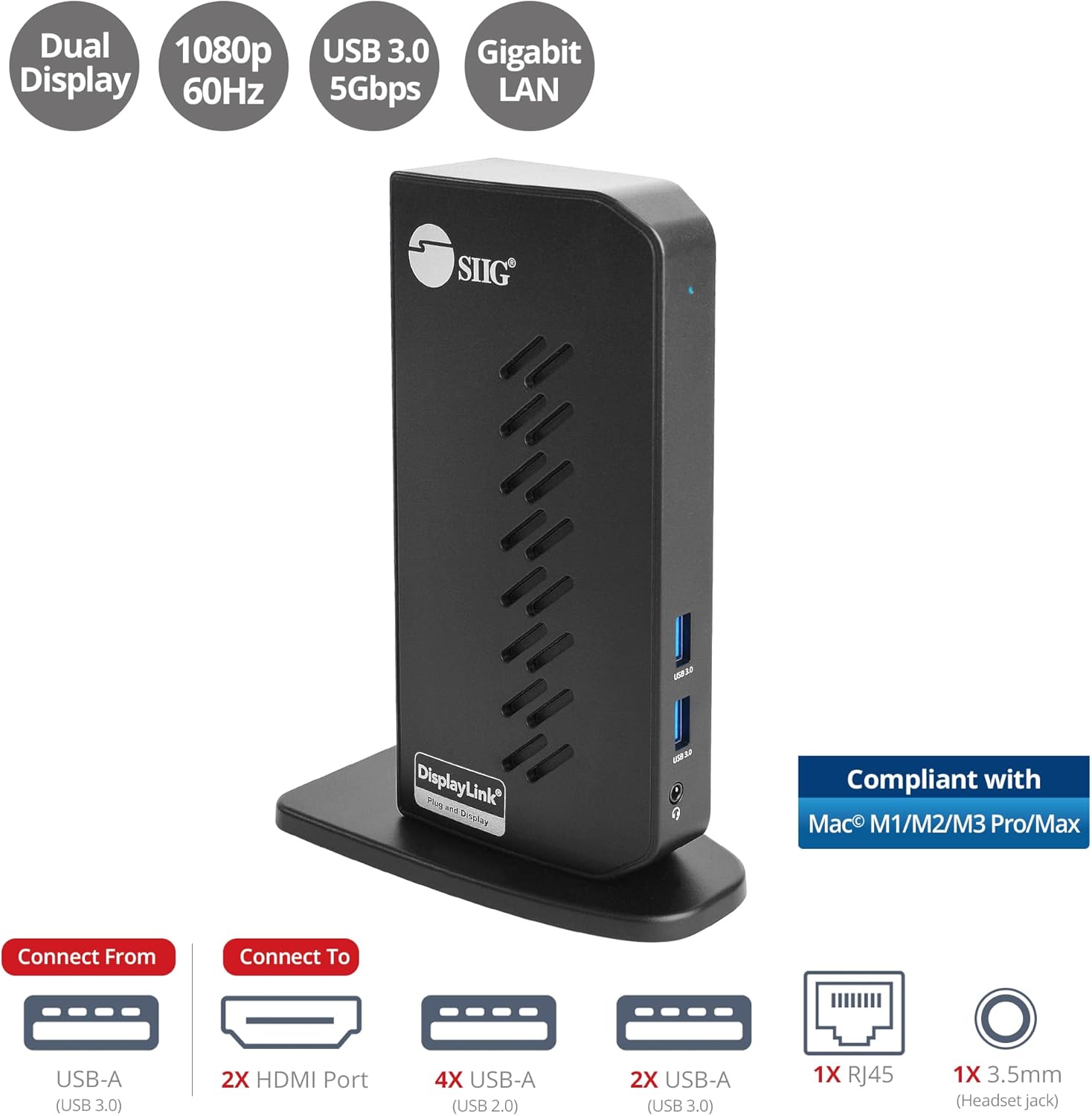
Image 1.1: The SIIG JU-DK0L11-S1 Dual Monitor Docking Station, showcasing its compact vertical design and various connectivity options.
2. Naveroka pakêtê
Berî ku hûn bi sazkirinê berdewam bikin, piştrast bikin ku hemî tişt di pakêtê de hene.
- SIIG JU-DK0L11-S1 Dual Head Full HD HDMI Video Docking Station
- Adaptera Hêzê (12V/2A)
- USB 3.0 Type-A to Type-B Cable
- Driver CD (Drivers can also be downloaded from the official SIIG webmalper)
- Manual Bikarhêner

Image 2.1: All components included in the SIIG JU-DK0L11-S1 docking station package, including the docking station, power adapter, USB cable, driver CD, and user manual.
3. Hardware Layout
Familiarize yourself with the ports and indicators on the docking station.
Panela Eniyê
- Hêza LED: Rewşa hêzê nîşan dide.
- 2x USB 3.0 Ports: For connecting high-speed USB devices (5Gbps, 4.5W/900mA).
- Jack Headset 3.5mm: For connecting headphones or stereo speakers with microphone input.
Panela paşîn
- 4x USB 2.0 Ports: For connecting standard USB devices (480Mbps, 5V/900mA).
- Porta Ethernetê ya Gigabit a RJ45: For wired network connection (10/100/1000Mbps).
- 2x HDMI Outputs: For connecting external displays (up to 1080p@60Hz).
- USB 3.0 Type-B Port: For connecting the docking station to your host computer.
- Jack Jack: For connecting the 12V/2A power adapter.

Wêne 3.1: Bi hûrgilî view of the front and rear panels of the docking station, highlighting all available ports and their functions.
4. Rêwerzên Sazkirinê
Ji bo sazkirina stasyona dockingê van gavan bişopînin:
- Ajokarên DisplayLink saz bike: Before connecting the docking station, install the necessary DisplayLink drivers on your computer. You can use the included driver CD or download the latest drivers from the official DisplayLink webmalper (www.displaylink.com/ daxistinan) or SIIG's support page.
- Hêza girêdanê: Plug the provided 12V/2A power adapter into the docking station's power jack and then into a wall outlet. The Power LED on the front panel should illuminate.
- Girêdana bi Komputera Host re: Use the supplied USB 3.0 Type-A to Type-B cable to connect the docking station's USB 3.0 Type-B port to an available USB 3.0 Type-A port on your laptop or desktop computer.
- Nîşandanan Girêbide: Connect your external monitors to the two HDMI output ports on the rear of the docking station using HDMI cables.
- Girêdana Peripheral: Connect your USB devices (keyboard, mouse, printer, flash drives, etc.) to the available USB 3.0 and USB 2.0 ports. Connect an Ethernet cable to the RJ45 port for a wired network connection. Plug your headset or speakers into the 3.5mm audio jack.
Video 4.1: An official video demonstrating the setup and connectivity of the SIIG JU-DK0L11-S1 Dual Head Full HD HDMI Docking Station, showing how to connect monitors and peripherals.
5. Telîmatên Operating
Once the docking station is set up, you can configure your display settings and utilize the connected peripherals.
Modes Display
The docking station supports three primary display modes:
- Moda Neynikê: Duplicates your primary display onto the external monitors.
- Moda Berfirehkirin: Sermaseya we li ser gelek ekranan fireh dike, û dihêle ku qada xebatê zêdetir bibe.
- Moda Sereke: Designates one of the connected displays as the main display.
You can configure these settings through your operating system's display settings (e.g., Windows Display Settings or macOS System Settings > Displays).

Image 5.1: A typical dual 1080p monitor setup utilizing the SIIG docking station, demonstrating an extended display configuration for enhanced productivity.
Têkiliya USB
The docking station provides two USB 3.0 ports for high-speed data transfer (e.g., external hard drives, SSDs) and four USB 2.0 ports for standard peripherals (e.g., keyboard, mouse, printer). Simply plug your devices into the corresponding ports.
Gigabit Ethernet
For a stable and fast internet connection, connect an Ethernet cable from your router or modem to the RJ45 port on the docking station. This provides a more reliable connection than Wi-Fi, supporting 10/100/1000 BASE-T wired networks.

Wêne 5.2: Nêzîkbûn view of the Gigabit RJ45 Ethernet port and USB ports, illustrating their use for network and high-speed data transmission.
Girêdana Audio
The 3.5mm headset jack allows you to connect headphones, speakers, or a microphone. Ensure your operating system's audio settings are configured to use the docking station's audio output/input.
6. Specifications (Model: JU-DK0L11-S1)
| Nîşan | SIIG |
| Hejmara Model | JU-DK0L11-S1 |
| Navrûya Alavê | 3.5mm Audio, Ethernet, HDMI, USB 1.1, USB 2.0, USB 3.0 |
| Amûrên Lihevhatî | Desktop or laptop computer with an available USB 3.0 Type-A port. Compatible with Windows® 11/10/8.1/8/7 and macOS® 11 / 10.15 to 10.10. |
| Tevahiya Portên USB | 6 (2x USB 3.0, 4x USB 2.0) |
| Tevahiya Portên HDMI | 2 |
| Max Resolution | 1080p@60Hz (per display) |
| Leza Ethernet | Gîgabît (10/100/1000Mbps) |
| Volta Inputtage | 100 Volt (AC) |
| Mezinahiyên hilberê (L x W x H) | 5.31" x 2.87" x 7.36" |
| Babetê Weight | 0.75 Pound |

Image 6.1: Physical dimensions of the SIIG JU-DK0L11-S1 docking station, illustrating its compact and space-saving design.
7. Destpêkirin
- Derana Nîşandanê Tune ye:
- Ensure the docking station is powered on and the Power LED is lit.
- Verify that the USB 3.0 cable is securely connected between the docking station and your computer.
- Check that HDMI cables are firmly connected to both the docking station and your monitors.
- Confirm that DisplayLink drivers are correctly installed and up to date.
- Biceribînin ku komputera xwe ji nû ve bidin destpêkirin.
- Cîhazên USB yên Nayên Naskirin:
- Ensure the docking station is powered and connected to your computer.
- Biceribînin ku cîhaza USB-ê bi portek cûda li ser stasyona dockingê ve girêdin.
- Connect the USB device directly to your computer to rule out device issues.
- Girêdana Torê Tune ye:
- Verify the Ethernet cable is securely connected to the RJ45 port on the docking station and your network source.
- Check your computer's network settings to ensure the Ethernet adapter is enabled.
- Confirm that your router/modem is functioning correctly.
- Pirsgirêkên Deng:
- Ensure your headset/speakers are properly plugged into the 3.5mm jack.
- Check your computer's sound settings to select the docking station as the default audio output/input device.
8. Maintenance
To ensure the longevity and optimal performance of your SIIG docking station, follow these maintenance guidelines:
- Amûrê bi qumaşek nerm û hişk paqij bihêlin. Ji bikaranîna paqijkerên şilemenî an aerosolan dûr bisekinin.
- Ensure proper ventilation around the docking station to prevent overheating. The vertical design with heat dissipation features aids in this.
- Dûr nehêlin amûrê ji germahiyên pir zêde, nembûn, an tîrêja tavê ya rasterast.
- Ji bo rêgirtina li zirarê, bi nermî kablo û pêvekan bigirin.
9. Garantî û Piştgirî
For warranty information and technical support, please refer to the documentation included with your product or visit the official SIIG website. SIIG is committed to providing reliable products and customer assistance.
For further assistance, you may contact SIIG customer support directly through their webmalper an agahdariya têkiliyê ya ku di pakêta hilbera we de hatî peyda kirin.