
1. Destpêk
The Comfast CF-WU720N is a compact 150Mbps Wireless USB Adapter designed to provide high-speed wireless connectivity for your desktop or notebook computer. It allows you to connect to a wireless network and access the internet, share files, and enjoy online gaming at speeds up to 150Mbps. This adapter is compliant with IEEE 802.11b/g/n standards and supports USB 2.0 for efficient data transfer.
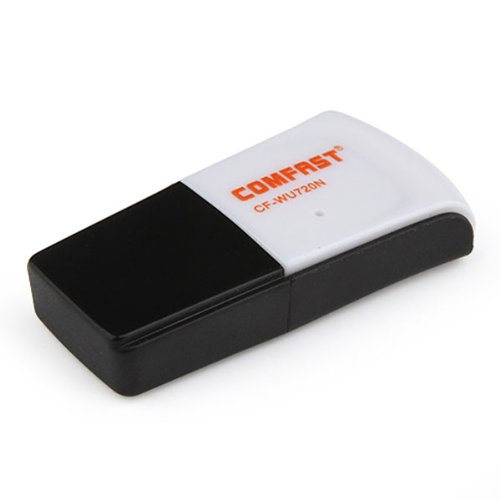
Image 1.1: The Comfast CF-WU720N Wireless USB Adapter, a compact device for wireless connectivity.
2. Taybetmendiyên Hilberê
- Meets IEEE 802.11b/g/n wireless standards.
- Supports USB 2.0 interface for broad compatibility.
- Utilizes Realtek 8191 SU chipset for reliable performance.
- Achieves wireless connection rates up to 150Mbps.
- Supports wireless roaming technology for seamless connectivity.
- Strong compatibility with various popular operating systems.
- Compact size: approximately 39 x 12 x 7mm (1.5 x 0.7 x 0.3 inches).
- Lightweight design: approximately 5g.
3. Naveroka pakêtê
Ji kerema xwe piştrast bikin ku hemî tişt di pakêtê de hene:
- 1 x Comfast CF-WU720N Wireless USB Adapter
- 1 x Rêbernameya Sazkirinê ya Zû
- 1 x CD-ROM Driver
- 1 x Karta Garantî

Image 3.1: The retail packaging for the Comfast CF-WU720N, showing the adapter inside.
4. Sazkirin û Sazkirin
4.1. Driver Installation
Before connecting the USB adapter, it is recommended to install the necessary drivers from the provided CD-ROM. This ensures proper functionality and compatibility with your operating system.
- Insert the driver CD-ROM into your computer's optical drive.
- If the installer does not launch automatically, navigate to "My Computer" or "This PC," open the CD-ROM drive, and run the setup executable (e.g., "setup.exe" or "autorun.exe").
- Ji bo temamkirina sazkirina ajokerê rêwerzên li ser ekranê bişopînin. Dibe ku piştî sazkirinê ji we were xwestin ku hûn komputerê ji nû ve bidin destpêkirin.
- Not: If your computer does not have an optical drive, you may need to download the latest drivers from the manufacturer's official website.
4.2. Girêdana Adaptora USB
Once the drivers are installed, you can connect the Comfast CF-WU720N Wireless USB Adapter to your computer.
- Locate an available USB 2.0 or 3.0 port on your desktop or laptop computer.
- Carefully insert the Comfast CF-WU720N adapter into the USB port. Ensure it is fully seated.
- The operating system should automatically detect the adapter and configure it using the installed drivers. A small LED indicator on the adapter may light up or blink, indicating activity.
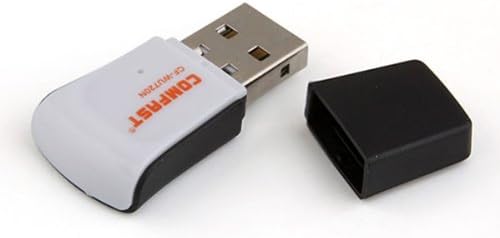
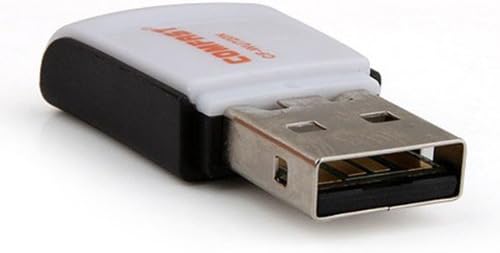
Image 4.1: The Comfast CF-WU720N adapter with its protective cap removed, revealing the USB connector. Image 4.2: A side view of the adapter, highlighting its compact design and USB interface.
5. Telîmatên Operating
After successful driver installation and adapter connection, you can now connect to a wireless network.
- Mîhengên Torê Bigihîne:
- Windows: Li ser tepsiya pergalê (bi gelemperî li quncikê jêrîn ê rastê) li ser îkona tora bêtêl bikirtînin.
- macOS: Li ser îkona Wi-Fi-yê di barika menuyê de bikirtînin (bi gelemperî li quncikê jorîn-rastê ye).
- Linux: Access network settings through your desktop environment's network manager.
- Tora xwe Hilbijêre: A list of available wireless networks (SSIDs) will appear. Select the name of your desired network.
- Bihevgirêdan: Click "Connect" or "Join." If the network is secured, you will be prompted to enter the network security key (password).
- Têkiliyê piştrast bikin: Once connected, the network icon will typically change to indicate a successful connection, and you should be able to access the internet.
6. Maintenance
To ensure optimal performance and longevity of your Comfast CF-WU720N Wireless USB Adapter, follow these simple maintenance guidelines:
- Paqij bimînin: Gently wipe the adapter with a soft, dry cloth to remove dust. Avoid using liquid cleaners or solvents.
- Parastina Girêdana USB: When not in use, keep the protective cap on the USB connector to prevent dust and damage.
- Ji şert û mercên giran dûr bixin: Do not expose the adapter to extreme temperatures, humidity, or direct sunlight.
- Bi baldarî tevbigerin: Ji avêtin an jî xistina adapterê ber bi bandorên dijwar dûr bisekinin.
- Nûvekirinên ajokar: Periyodîk a daneyên hilberîner kontrol bikin website for updated drivers to ensure the best performance and compatibility.
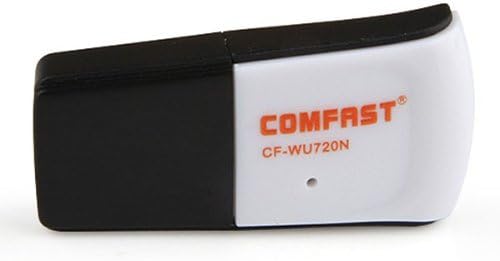
Image 6.1: The Comfast CF-WU720N adapter with its protective cap in place, ready for storage or transport.
7. Destpêkirin
If you encounter issues with your Comfast CF-WU720N Wireless USB Adapter, refer to the following common solutions:
| Pirsegirêk | Çareseriya gengaz |
|---|---|
| Adapter not detected / No Wi-Fi networks visible. |
|
| Cannot connect to a specific Wi-Fi network. |
|
| Slow connection speed or frequent disconnections. |
|
8. Specifications
| Taybetî | Hûrî |
|---|---|
| Cins | CF-WU720N |
| Standardên Wireless | IEEE 802.11b/g/n |
| Interface | USB 2.0 |
| Chipset | Realtek 8191 SU |
| Leza Wireless | Heta 150 Mbps |
| Range Frequency | 2.4 GHz |
| Taybetmendiyên Ewlekariyê | WPA/WPA2, WPA-PSK/WPA2-PSK, 64/128-bit WEP |
| Pergalên Xebatê | Windows XP/Vista/7/8/10, macOS, Linux (driver dependent) |
| Pîvan (L x W x H) | Nêzîkî 39 x 12 x 7 mm (1.5 x 0.7 x 0.3 înç) |
| Pîvan | Approx. 5 g |
9. Garantî û Piştgirî
This product comes with a warranty as specified on the included Warranty Card. Please refer to the card for details regarding warranty period, terms, and conditions.
For technical support, driver updates, or further assistance, please visit the official Comfast webmalperê an jî bi beşa karûbarê xerîdar re têkilî daynin. Agahiyên têkiliyê bi gelemperî li ser pakêta hilberê an jî ya çêker têne dîtin. website.
Ji bo armancên garantiyê, ji kerema xwe fatûreya kirîna xwe biparêzin.